How to use Dipstick
Everything the app does, one step at a time, with a picture of the screen you'll be looking at. Read it top to bottom, or jump to the part you need.
The pictures show the three example cars every new install starts with, so yours will have different numbers in them, but the same buttons in the same places.
Start here
What Dipstick is
Dipstick keeps everything about your vehicles in one place: every fill-up, every oil change, every receipt, the insurance card, the registration date, and what all of it really costs you per mile. It reminds you when service is due and when paperwork is about to lapse.
What it isn't: there's no account
You don't sign up for anything. There's no Dipstick account, no password, and no Dipstick server. Your records live on your iPhone, and in your own iCloud if you're signed into iCloud on the phone, which is what backs them up and moves them to a new phone.
Saw a "Sign in with Apple" screen in an earlier beta? It's gone. It only put your name in Settings, and nothing ever depended on it. If you skipped it, you didn't miss anything.
The example cars
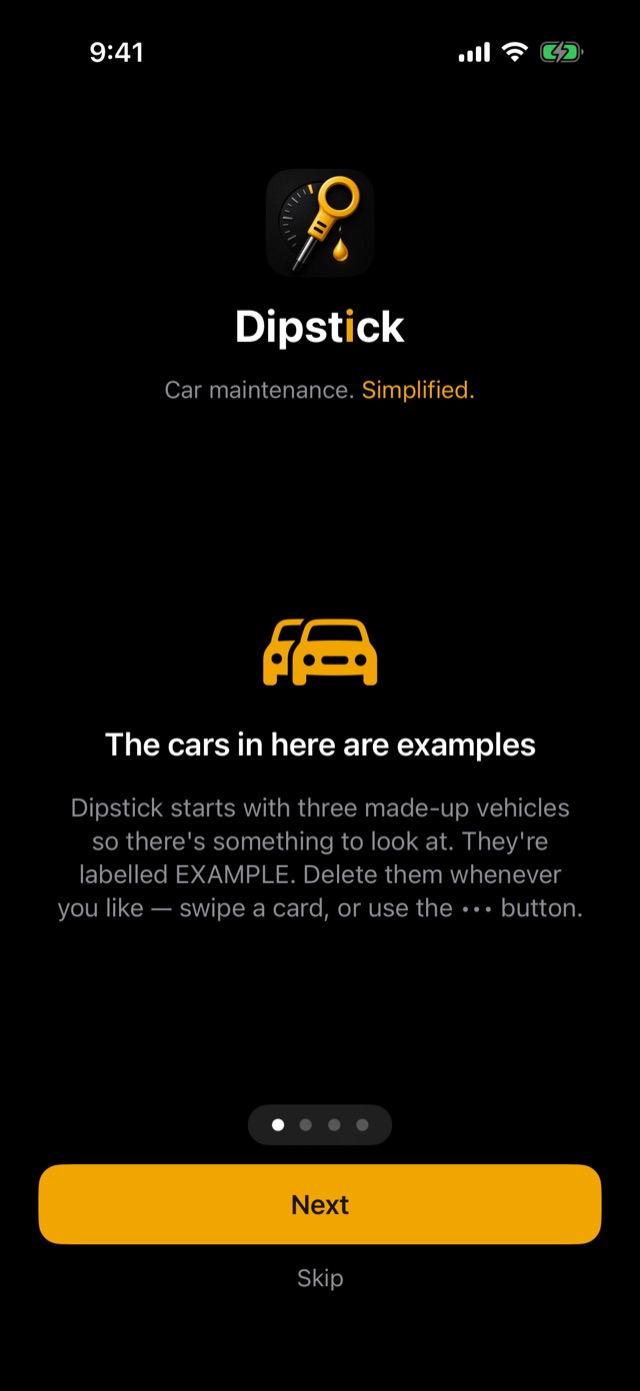
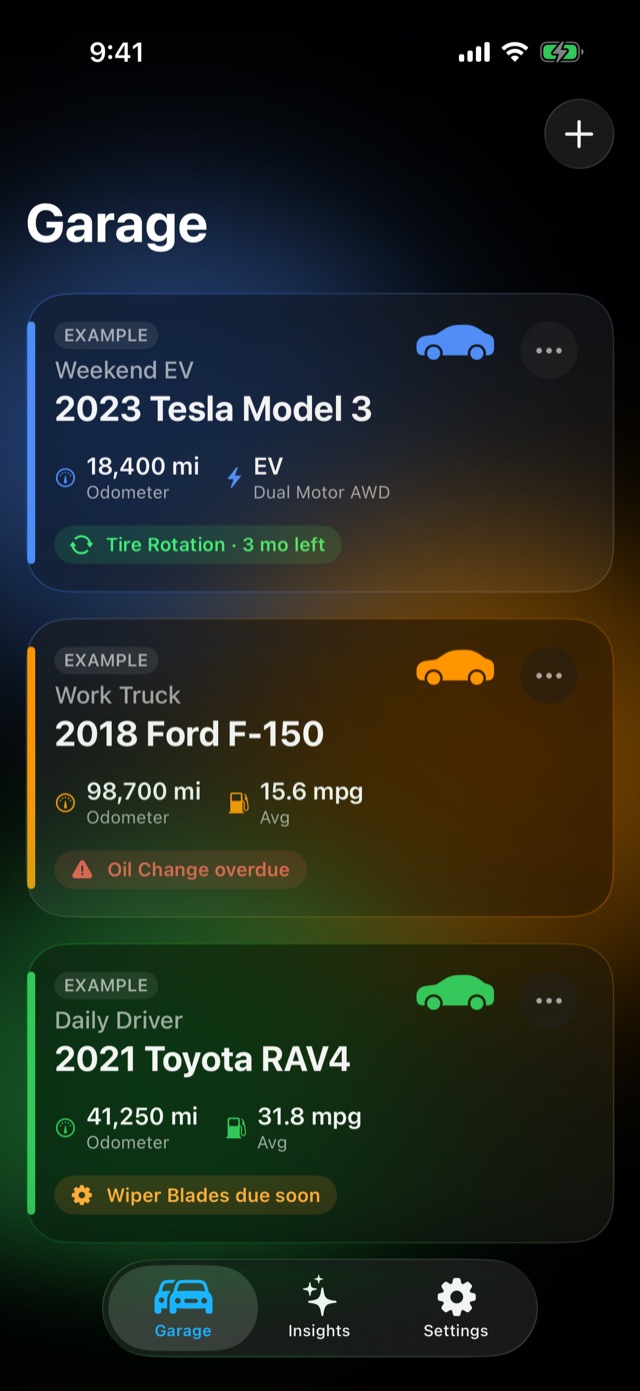
A new install opens with a short welcome, then a garage holding three made-up vehicles, a Tesla, a Ford F-150 and a Toyota RAV4, each marked EXAMPLE. They're there so every screen has something to show while you look around. Delete them whenever you like, once yours is in.
Finding your way around
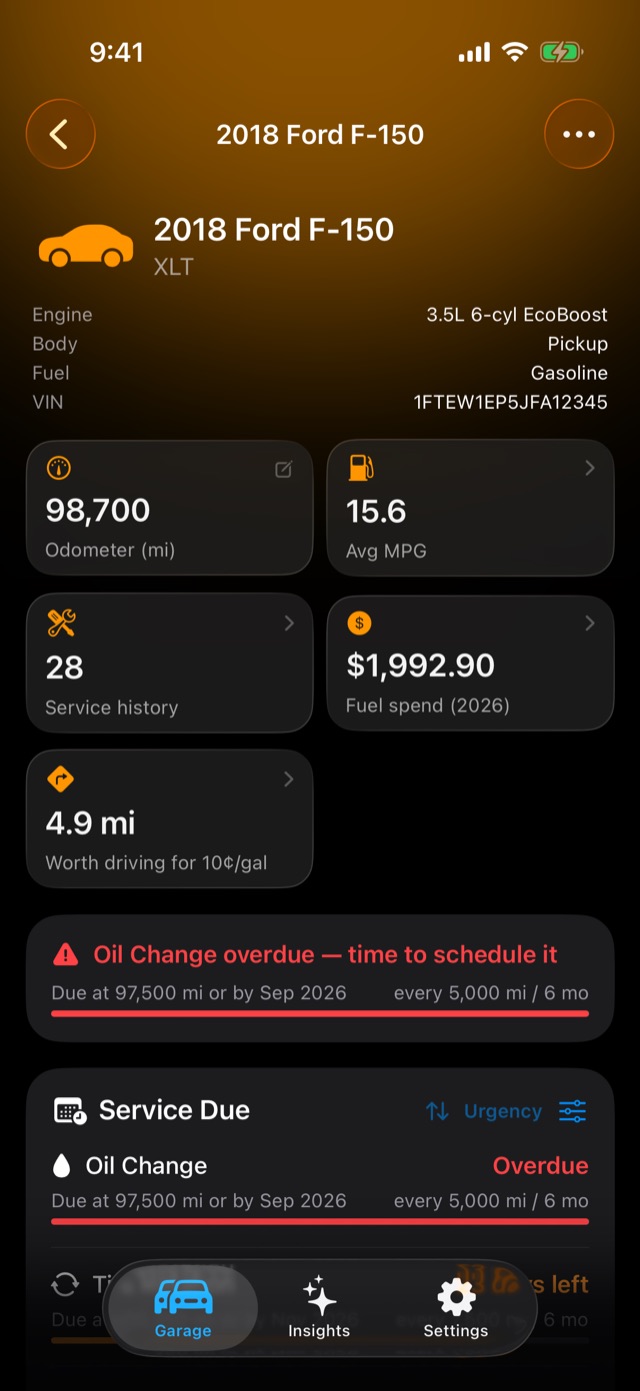
Three tabs along the bottom: Garage, Insights and Settings. Tap a vehicle in the garage to open its page. At the top are the tiles (odometer, average MPG, service history, fuel spend, and how far cheaper fuel is worth driving for). Below them are the cards: Service Due, Renewals, Fuel Economy, Service History and Recalls.
The ••• button at the top right of a vehicle's page holds everything else: Log Fill-up, Log Service, the owner's manual, Edit Vehicle, Vehicle Settings, Share This Vehicle and Delete Vehicle.
Your garage
Add a vehicle by scanning the VIN
The quickest way in. The VIN is printed on a sticker in the driver's door jamb, on the dashboard where it meets the windshield, and on your registration and insurance card.
- In the garage, tap + at the top right.
- Tap the scan button beside the VIN field and point the camera at the VIN. The barcode on the door sticker reads fastest, and the printed letters on the windshield work too.
- Year, make, model, trim and engine fill themselves in from the government's free vehicle database.
- Give it a nickname if you like ("Daily Driver", "Papi's RAM"), check the current mileage, and tap Save.
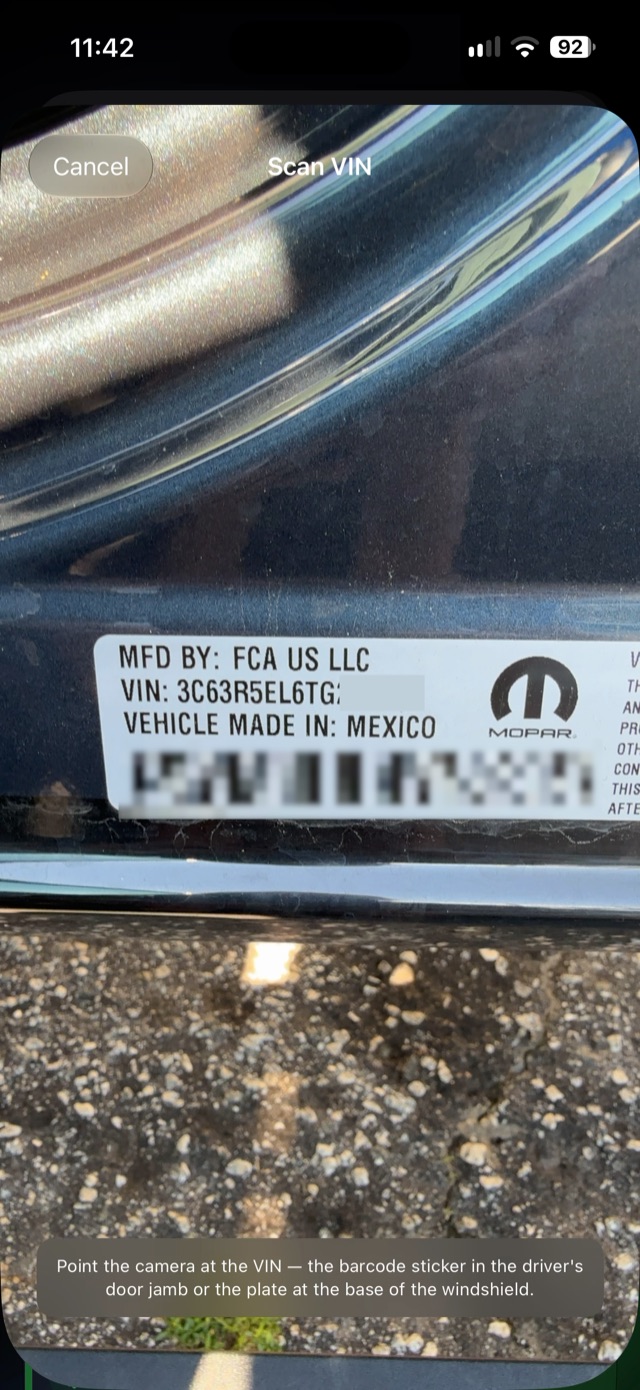
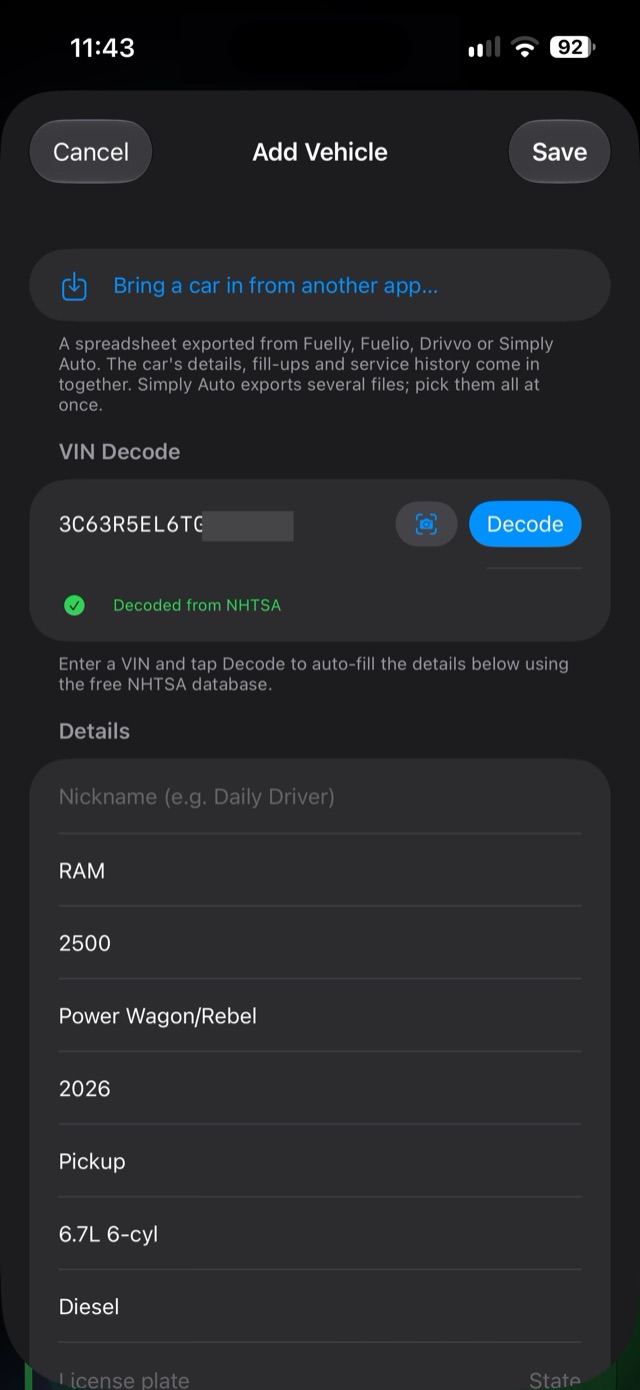
No camera handy? Type the 17-character VIN and tap Decode, or skip the VIN and type the make, model and year yourself. Everything works either way. The VIN is only needed for the recall check.
When you save a new vehicle, Dipstick offers the usual service schedule for it straight away. See Service reminders.
Bring a vehicle in from another app
Coming from Fuelly, Fuelio, Drivvo or Simply Auto? Tap +, then Bring a car in from another app… at the top of the form. The car, its fill-ups and its service records come in together. The details are in Moving data in and out.
Photo, nickname, plate and notes
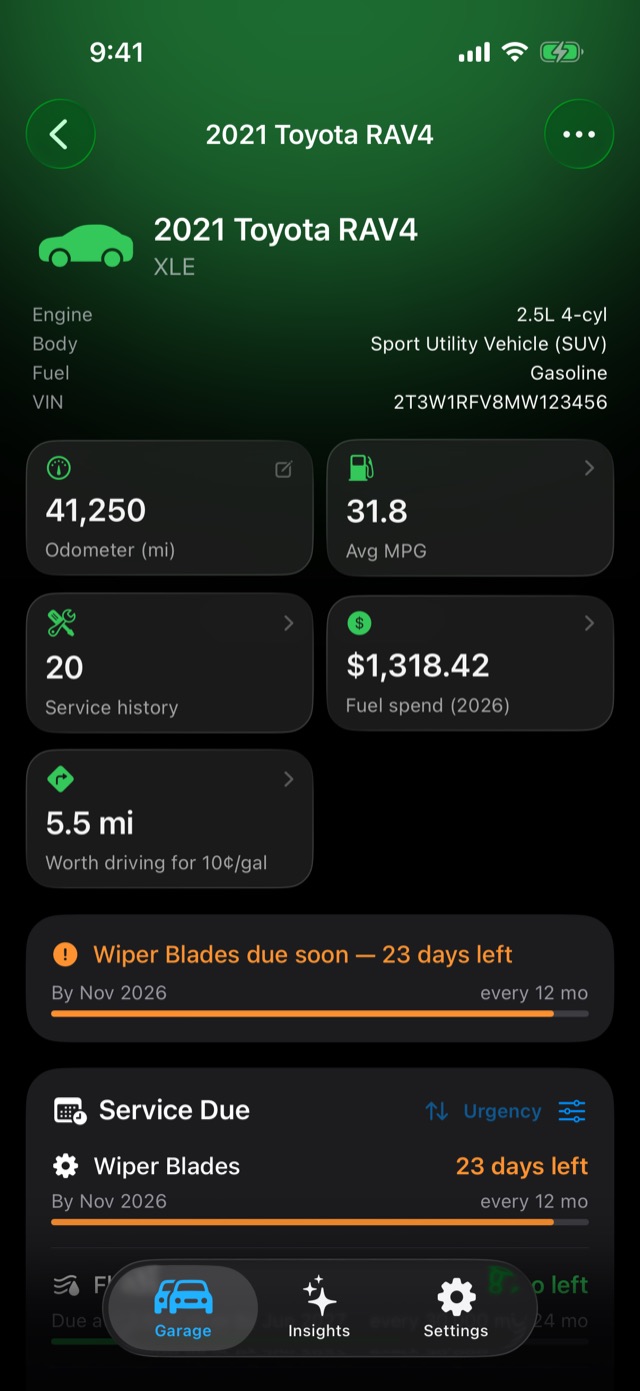
Open the vehicle, tap •••, then Edit Vehicle. Add a photo of the actual car (it replaces the cartoon on the garage card), the license plate and state, and any notes worth keeping, like tire sizes or the paint code. Tap the VIN on the vehicle's page to copy it.
Shortcuts from the garage
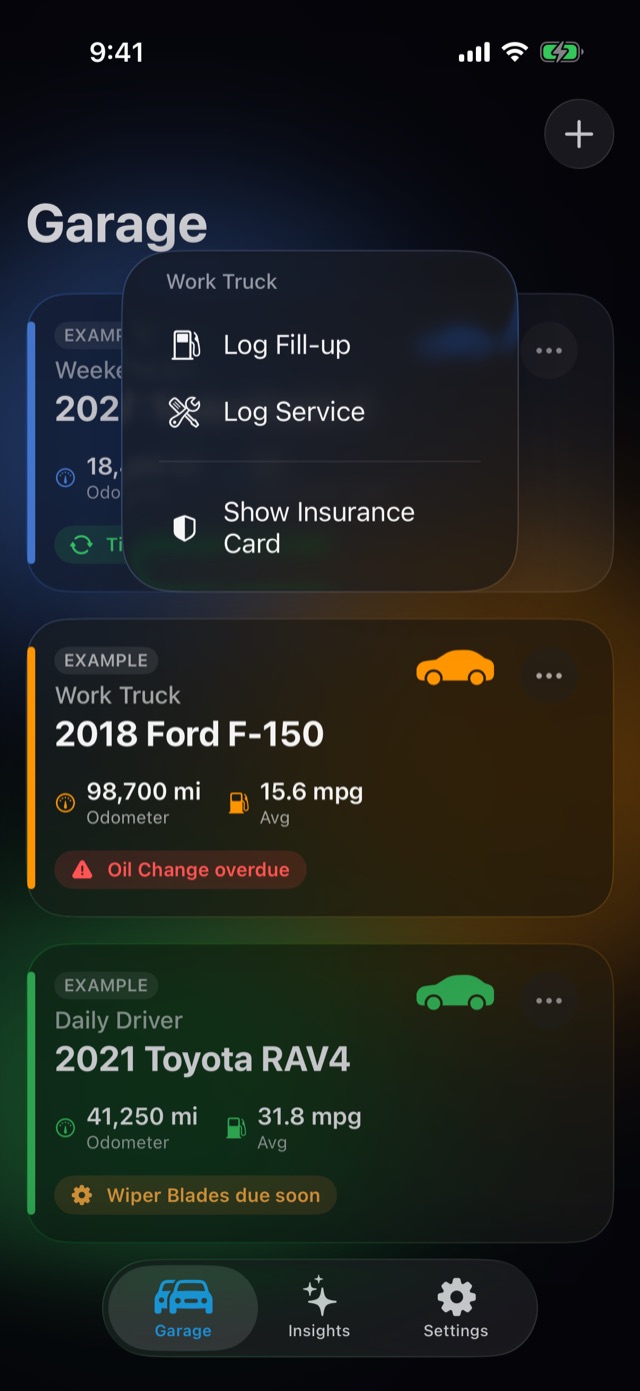
Press and hold a vehicle's card in the garage for Log Fill-up and Log Service, without opening the vehicle first. The menu is headed with the vehicle's name, so you can see you held the right one. The same two are at the top of the ••• on each card. Electric vehicles skip Log Fill-up. If the vehicle holds an insurance card or a registration card in its glovebox, Show Insurance Card and Show Registration Card are in the same menu, full screen and at full brightness — there's nothing to switch on; they appear for whichever cards exist.
Reorder, rename, delete
- Reorder: press and hold a card in the garage and start moving it right away, then drop it where you want it. (Hold still instead and you get the shortcuts menu.) Or use the ••• on the card and choose Move Up or Move Down.
- Name your garage: Settings → Garage Name. "Dad's Garage", "The Fleet". Leave it empty for plain "Garage".
- Delete a vehicle: the ••• on its card, then Delete. It goes to Recently Deleted for 30 days, so a slip is recoverable. See Safety nets.
Logging fill-ups
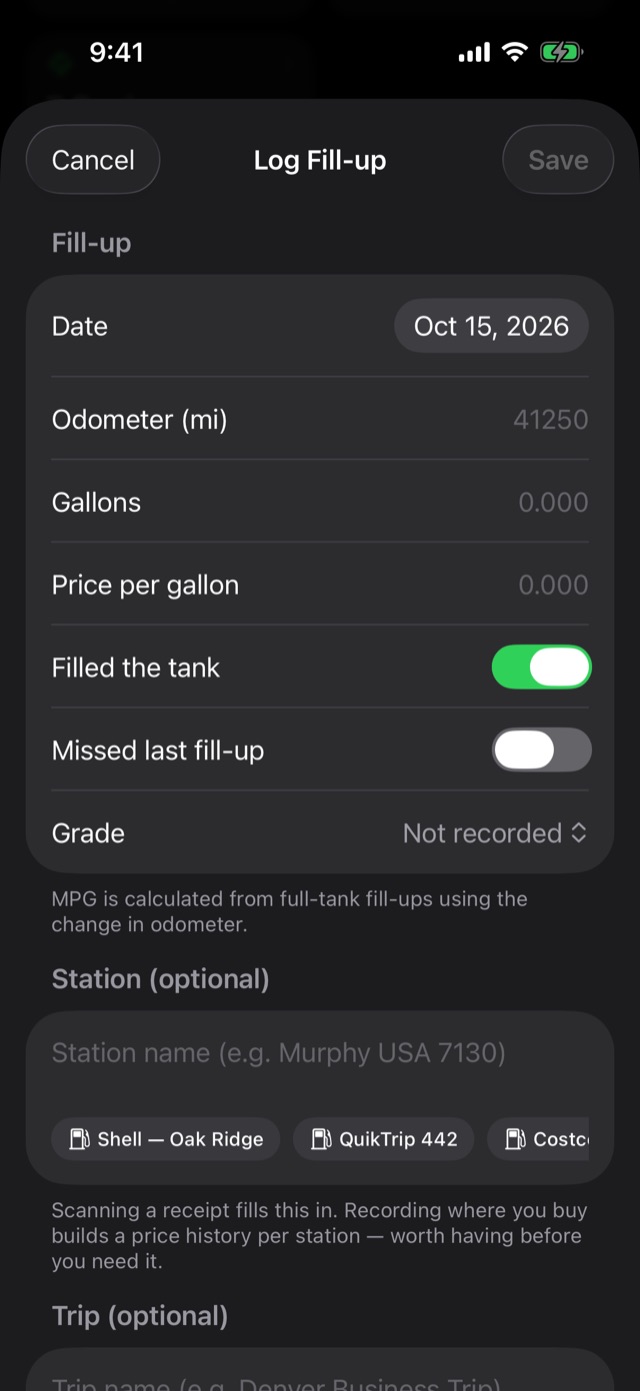
From the garage, press and hold the vehicle's card and choose Log Fill-up. Or open the vehicle and tap the blue + on the Fuel Economy card, or ••• → Log Fill-up.
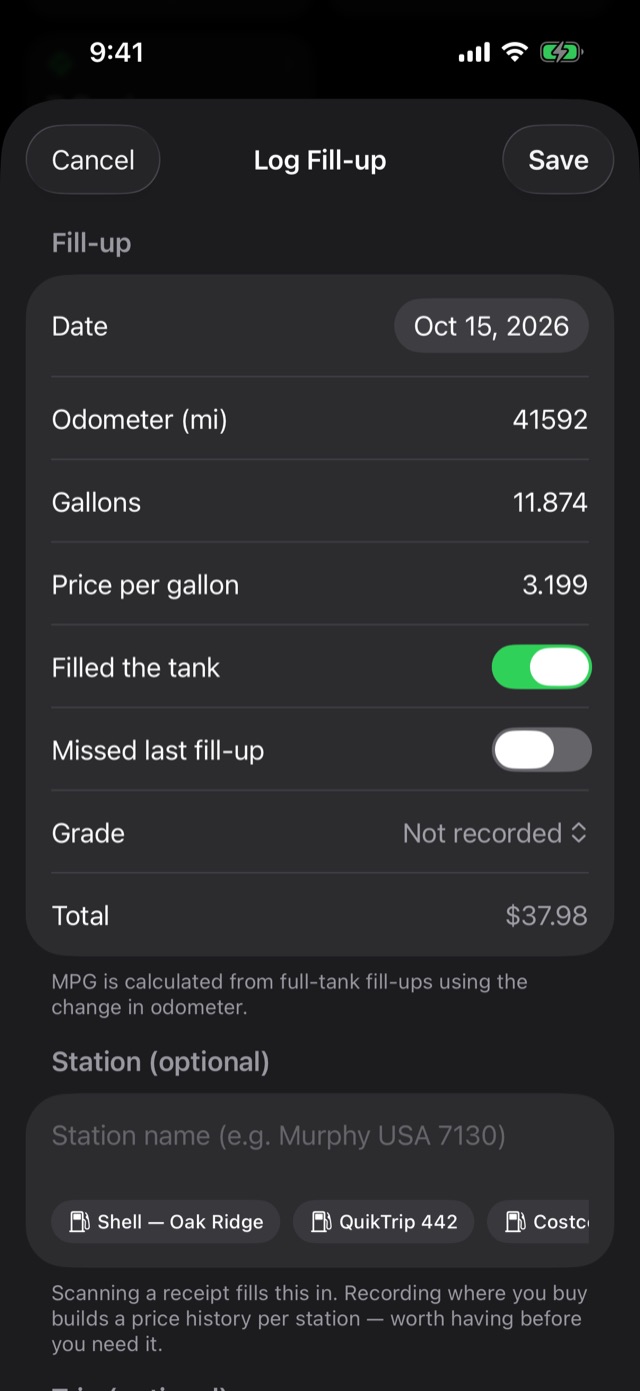
The form, field by field
- Date: today, unless you're catching up on an old receipt.
- Odometer: what the car reads now. (Prefer your trip meter? See Trip miles below.)
- Gallons and Price per gallon: off the pump or the receipt.
- Filled the tank: leave it on when the pump clicked off; turn it off when you only put in $20. This one matters for MPG. See why some fill-ups show no MPG.
- Missed last fill-up: turn this on if you filled up somewhere in between and never logged it. Without it, that tank's miles get credited to this one and your MPG looks twice as good as it was.
- Grade: regular, mid-grade, premium or diesel. It remembers what you chose last time.
- Station: type it, or tap one of the stations you've used before. Recording it builds a price history per station. See Stations.
- Trip: tag fill-ups with a trip name ("Beach Trip", "Denver Business Trip") to see that trip's fuel spend on its own. Handy for expense reports.
- Receipt: attach a photo of the receipt to keep with the record.
Scan the receipt
The fastest way to log a fill-up. At the top of the form, tap Scan Receipt and photograph the receipt. Gallons, price and the station come straight off the paper, and the photo is kept with the fill-up. No receipt? Photograph the pump display with the same scanner. Dipstick won't read the numbers off it, so type them in, but the photo stays with the fill-up as its record.
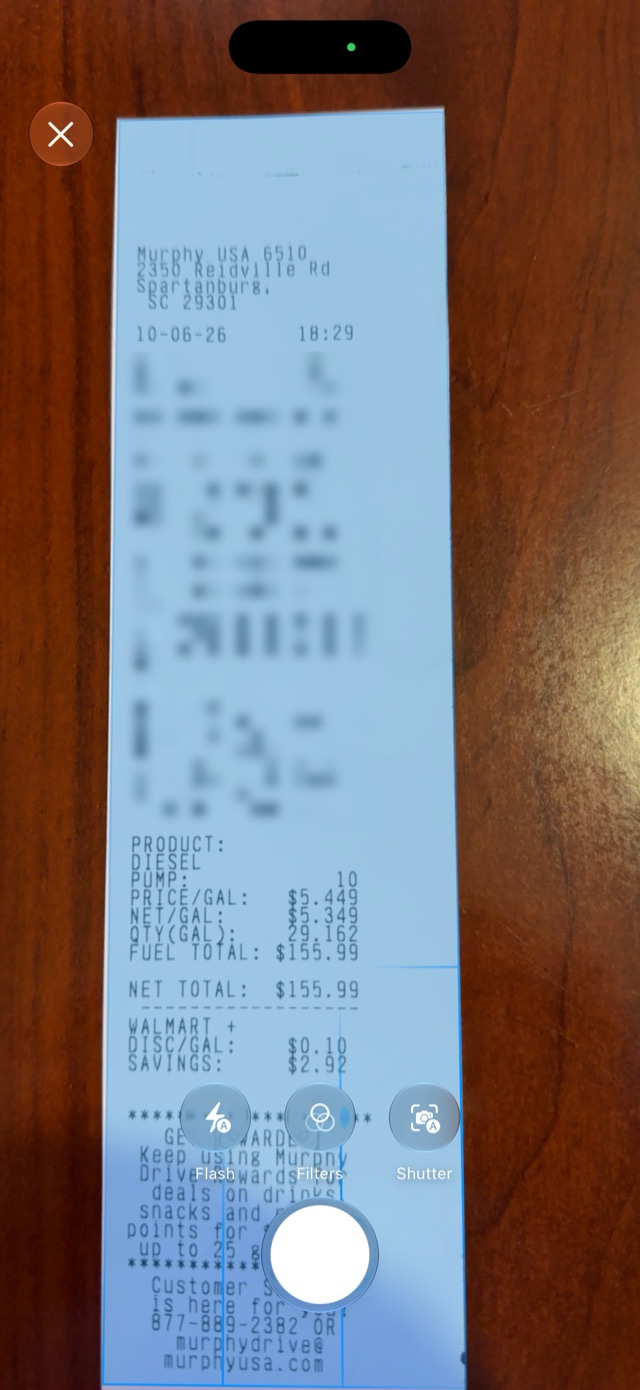
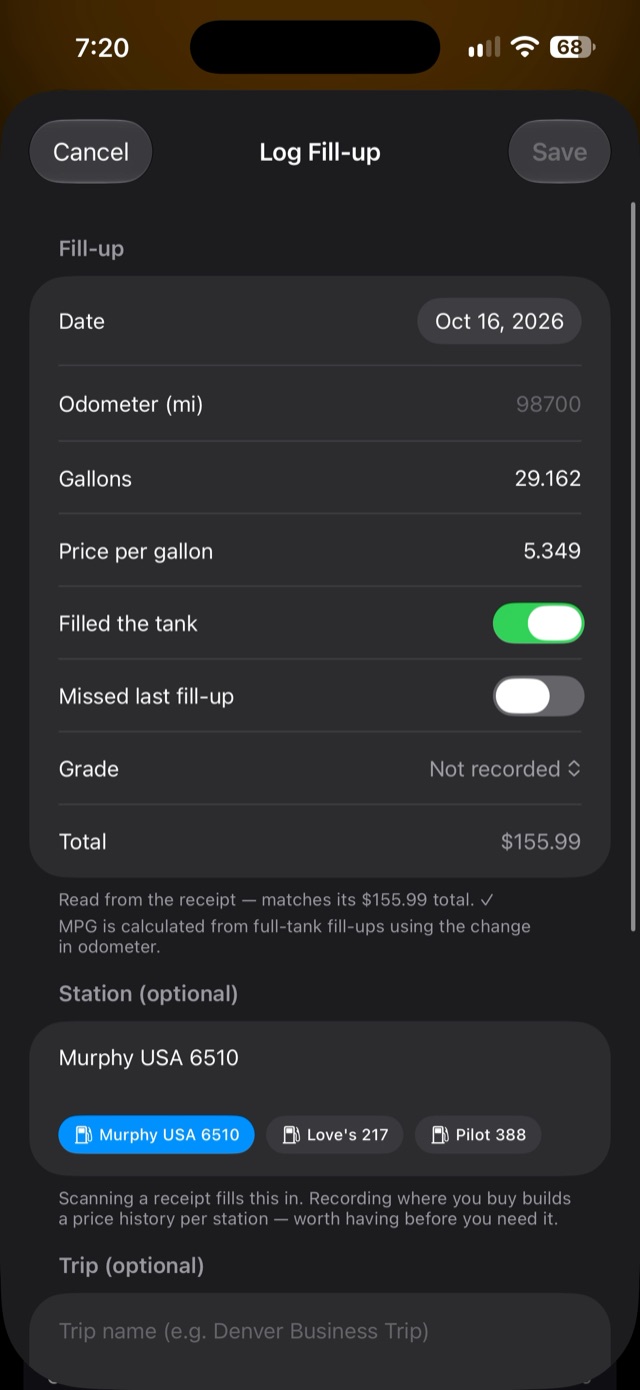
Tips for a clean scan. Lay the receipt flat with the whole thing in frame. Hold the phone still and let the shutter fire on its own. Resting your elbow on the roof of the car helps. Camera shake beats a smudged receipt every time.
When a scan reads clearly, a note under the fields says it matches the receipt's total, with a ✓. When it can't find the numbers, a Retake Scan button appears at the top. Tap it to drop that photo and try again, or just type the numbers in. Always glance at the numbers before you save.
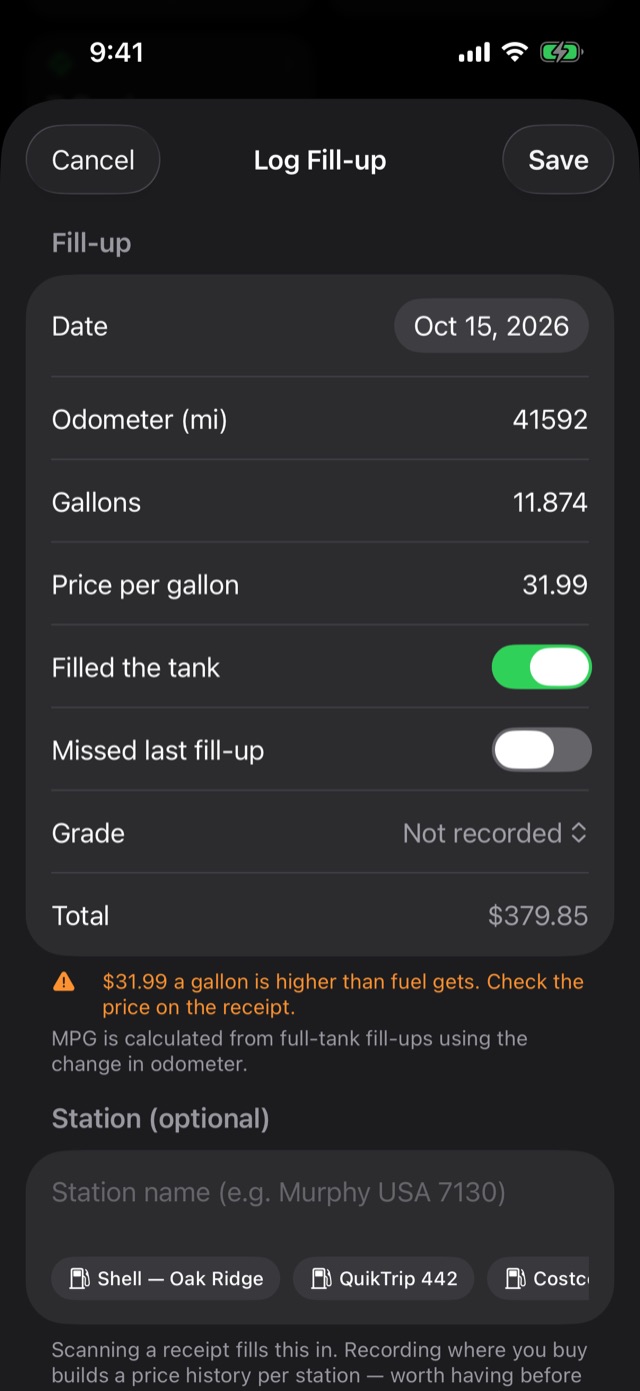
Warnings you might see
Dipstick double-checks what you type, and what a scan reads, against what makes sense for this vehicle:
- Orange: a second opinion, not a verdict. A price per gallon over $8 or under $1, or more gallons than this vehicle's tank has ever taken. Fix it, or save anyway if it's right.
- Red: an odometer reading lower than a fill-up from an earlier day. An odometer only goes up, so this one won't save until it's fixed. It's almost always a typo.
- A question: a reading lower than another fill-up logged for the same day. That's either this morning's fill-up going in after this afternoon's (fine) or a typo, and only you know which, so Dipstick asks instead of refusing. Save if it's right.
Trip miles: log by trip meter instead of odometer
If you reset your trip meter at the pump, you can type what it reads instead of the full odometer. Dipstick adds it to your last fill-up's odometer for you, so your MPG, cost per mile and service reminders all work exactly the same. (Thanks to a beta tester for this one.)
- Open the vehicle, tap ••• → Vehicle Settings.
- Under Fill-up Mileage, choose Trip miles.
- From then on, the fill-up form asks for Trip miles instead of the odometer. Tenths are fine: 312.4 is rounded to 312.
- Under the fields, a line shows the math: "Counting from the Oct 14 fill-up: 41,010 + 312 = 41,322 mi." If the date or the number looks wrong, it's wrong. Fix it before you save.
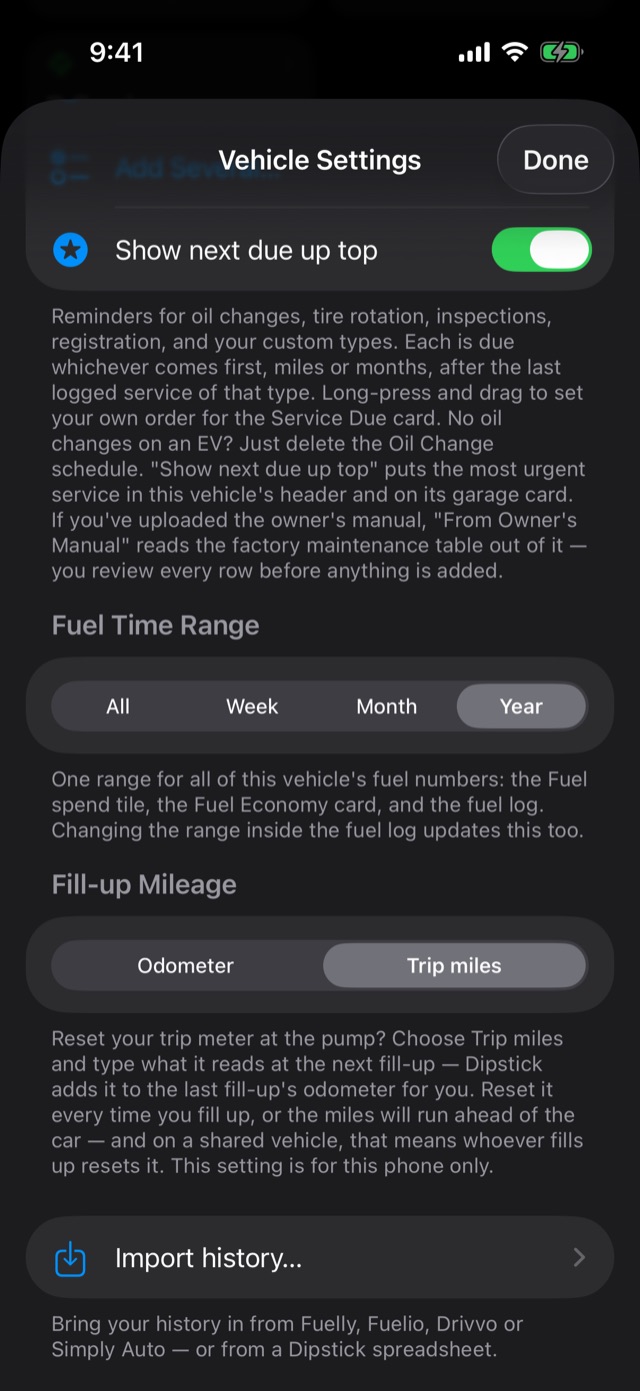
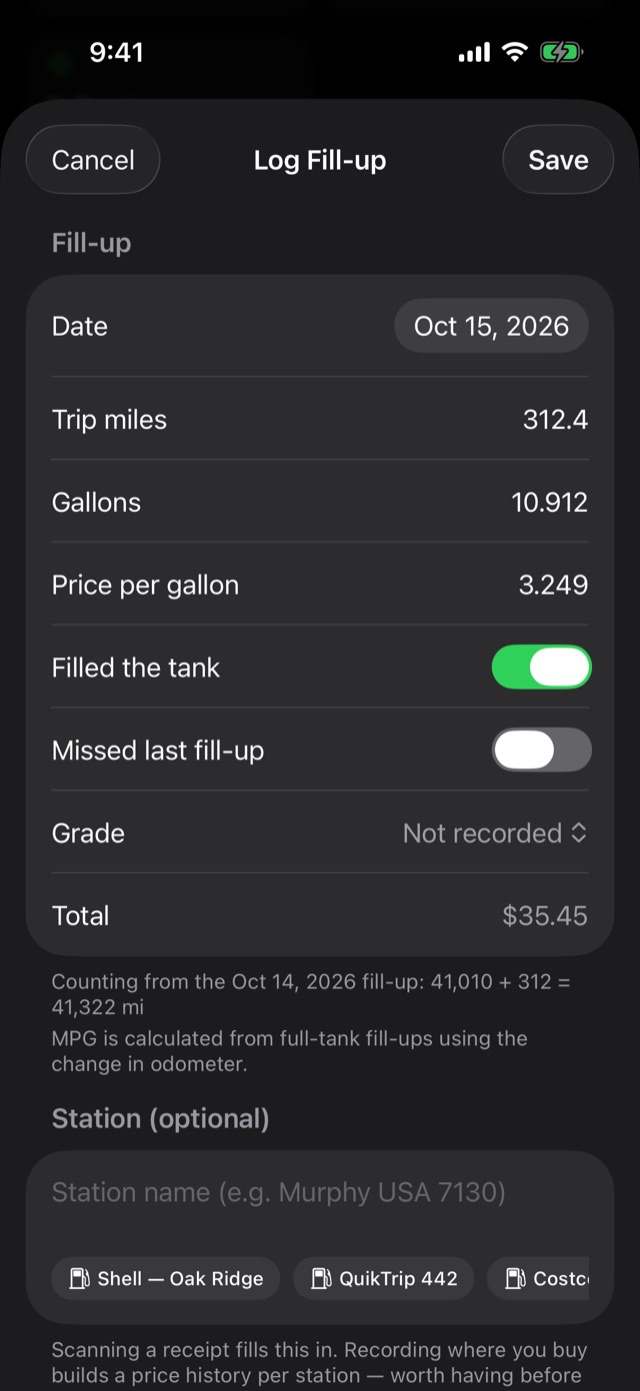
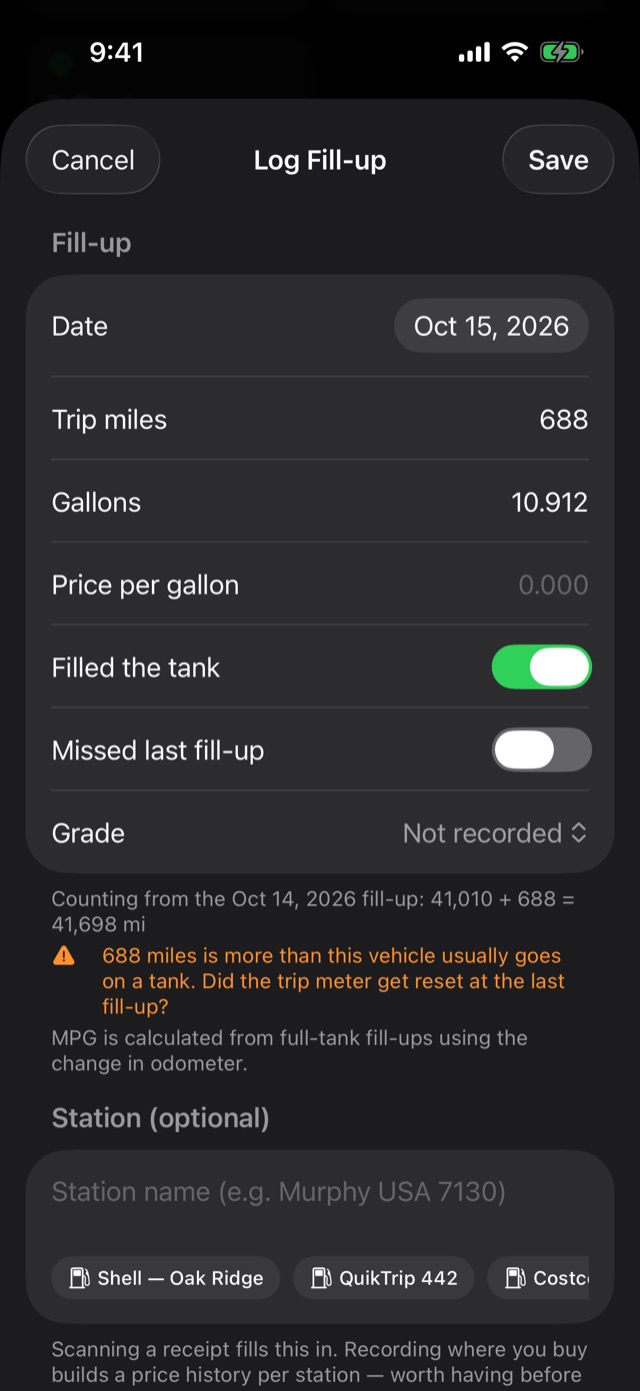
The one rule: reset the trip meter every time you fill up. If you forget, the next number covers two tanks and the car jumps hundreds of miles ahead of itself. Dipstick asks when a number looks like two tanks' worth, but it can't know for certain. On a shared vehicle, that means whoever fills up resets the meter.
- The first fill-up on a car still needs the odometer, so there's a starting point to count from. The form says so and shows the odometer field.
- After a missed fill-up, the form goes back to the odometer for that one. Your meter was reset at a stop that was never logged, so there's nothing to add it to.
- Does your odometer count short? See Odometer correction, just below.
- Editing an old fill-up always shows the odometer, because that's the number being corrected.
- The setting is per vehicle and per phone. Your spouse can keep using the odometer on the same shared truck.
- On the keyboard, there's no "done" key. Swipe down on the form to put the number pad away and read the line underneath.
Odometer correction: true MPG from a car that counts short
Some cars register a little less than they drive — 58 miles on the dash for a 60-mile commute — so every MPG they log reads low by the same few percent. Dipstick can allow for it. (Another beta-tester idea.)
- Open the vehicle, tap ••• → Vehicle Settings.
- Under Odometer Correction, choose Reads low or Reads high and type the percent. Taller tires make an odometer read low; smaller ones make it read high.
- Don't know the number? Tap Work it out from a drive you know… and give it a distance you trust — Google Maps, a GPS app, a commute you've measured — and what the car counted for that same drive. Either way round works: 58 counted for 60 driven reads low, 63 reads high. The longer the drive, the better the answer. Two drives rarely agree to the tenth, because a trip meter only shows tenths, so tap Add another drive: each shows its own figure, and the answer combines them by distance, as if they were one long drive.
- Back on the factory wheels? Choose Accurate and the correction is cleared.
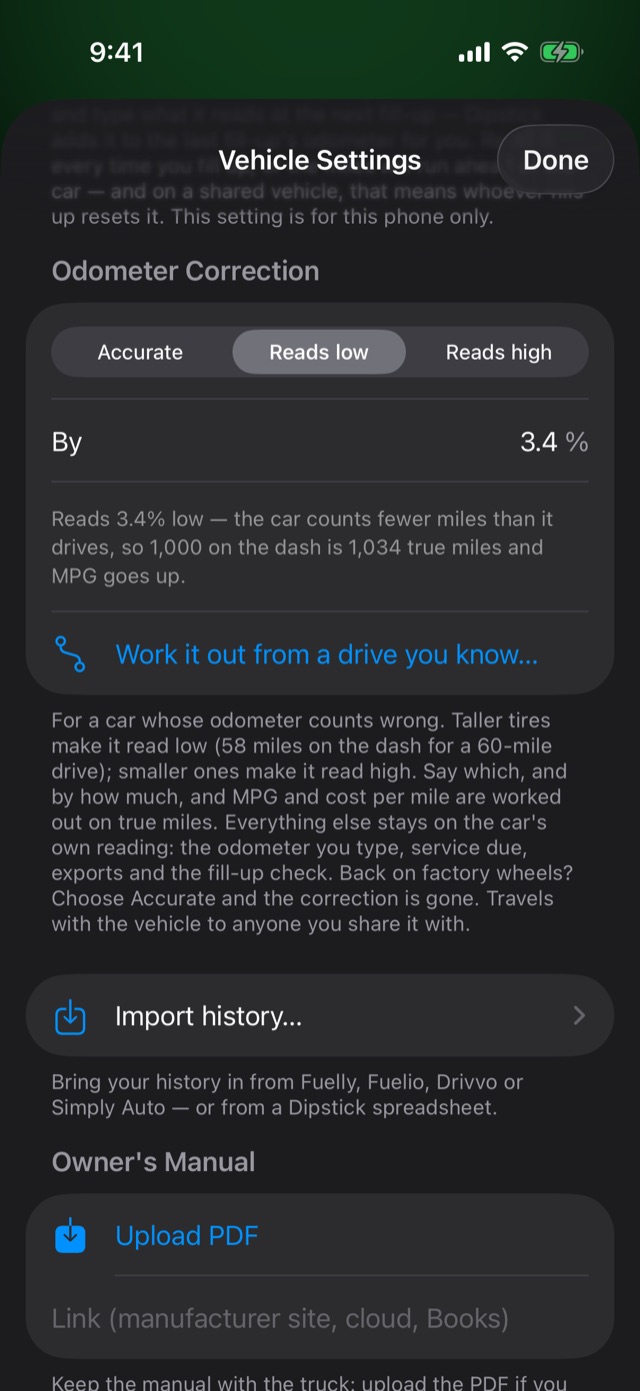
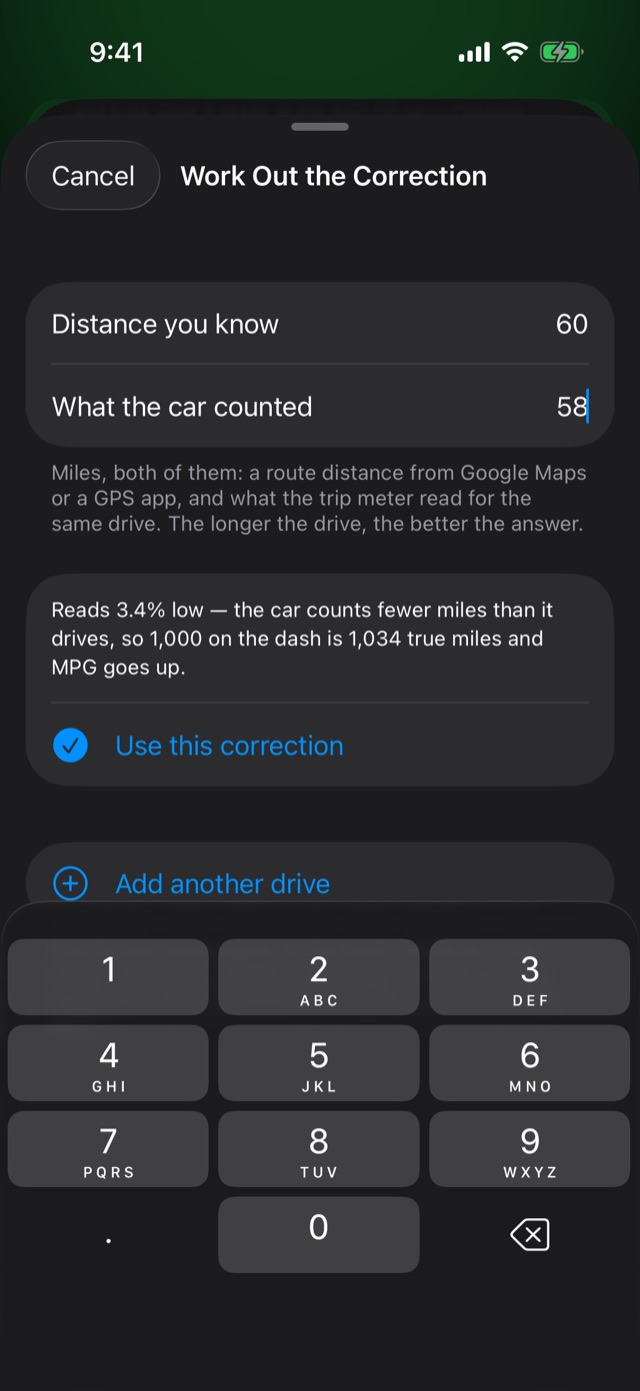
From then on MPG, miles since the last fill-up, cost per mile and the cost-of-ownership miles are worked out on true miles, and the odometer tile on the vehicle's page says Correction on so nobody wonders why the fuel numbers don't match the arithmetic. Open a fill-up and the note under it says what the car counted since the last one, beside the true miles it used. Nothing else changes. The odometer you type is still the one on the dash, service reminders count from it, exports print it, and the fill-up check compares against it — so the app never drifts away from the car. A PDF report notes when its miles and MPG columns are corrected. The setting travels with a shared vehicle.
Look at, edit or delete a fill-up
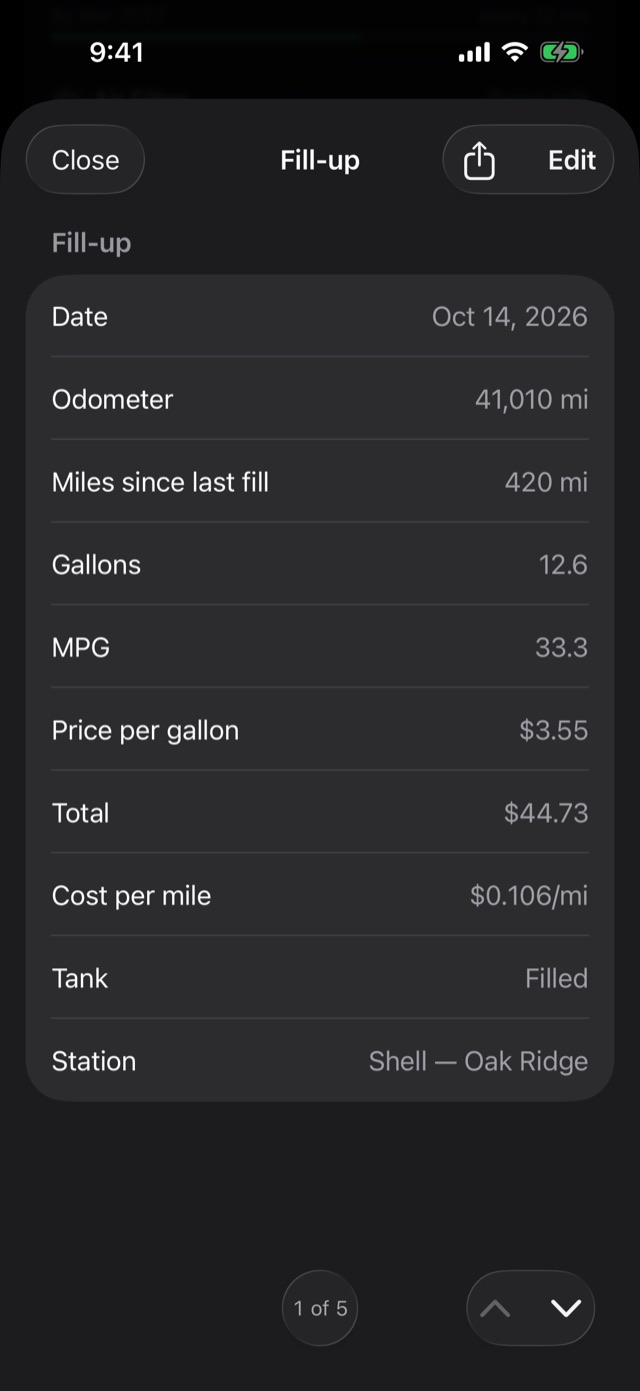
Tap any fill-up to see everything about it: miles since the last one, MPG, cost per mile, the station and the receipt. Tap Edit to fix anything. The arrows at the bottom step to the next and previous fill-up, or swipe up and down. To delete one, swipe it left in the fuel log.
Your fuel numbers
How MPG is worked out, and why some fill-ups show none
MPG is measured from one full tank to the next: the miles driven between them, divided by every gallon you put in along the way. A partial fill isn't a boundary you can measure from, so it shows no MPG of its own. Its gallons still count toward the next full tank, so nothing is lost. The first fill-up on a car shows none either, because there's nothing before it to measure from.
The Fuel Economy card
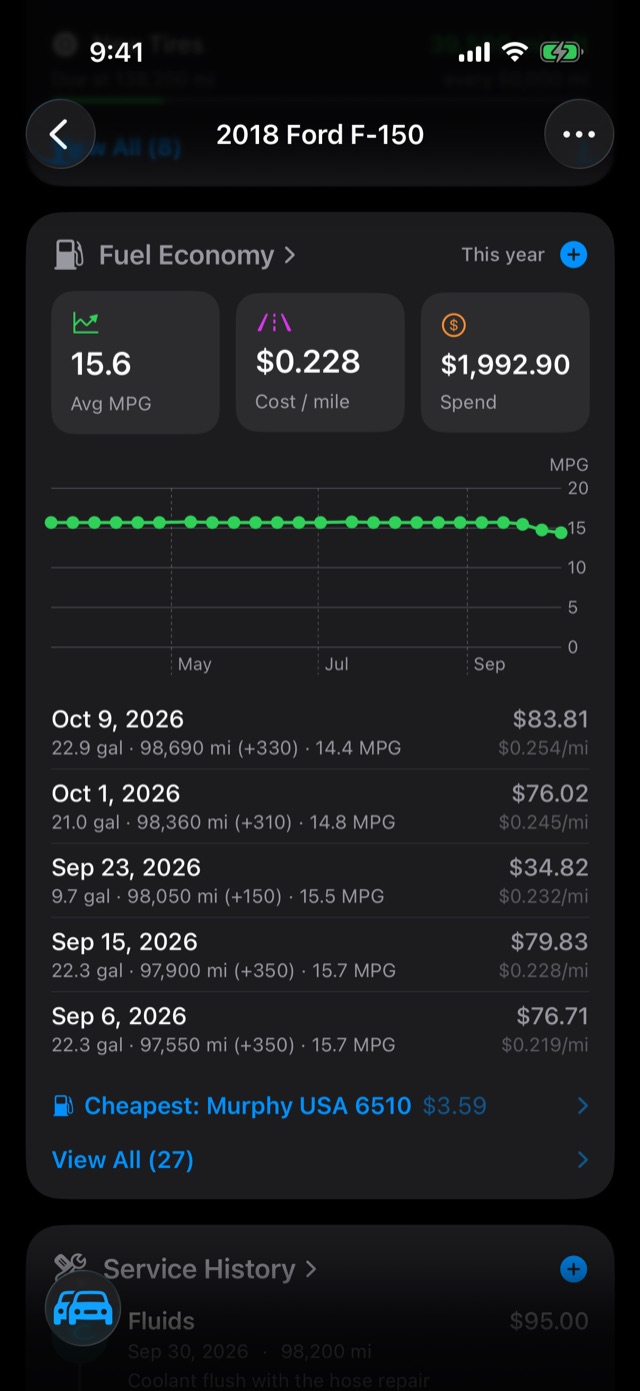
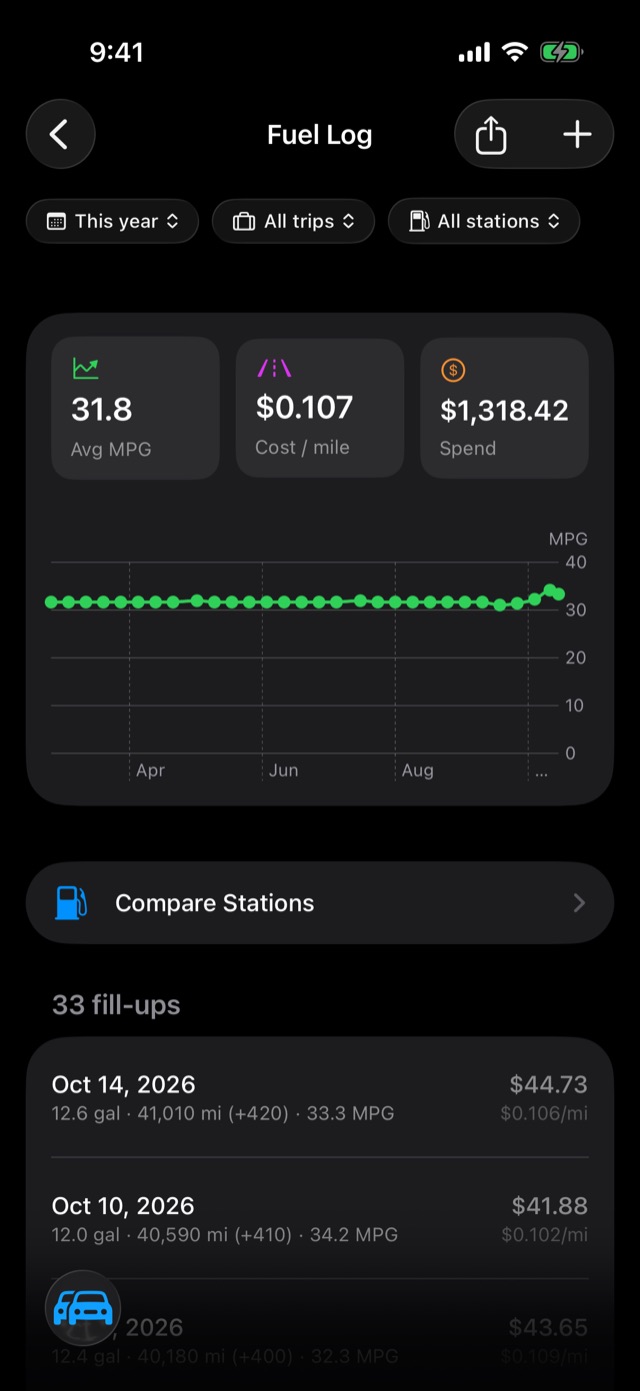
On each vehicle's page: average MPG, cost per mile, what you've spent, a chart of every tank, your last five fill-ups, and the cheapest station you use. View All opens the full fuel log.
Filtering the fuel log
- Time range: this week, this month, this year, all time, or your own dates. The range menu also lists every past year in the log. Tap one to see just that year. The vehicle page's fuel numbers follow whatever range you pick here.
- Trip: just one trip's fill-ups and its total spend.
- Station: just the fill-ups from one station.
Cost per mile
Every fill-up shows what it cost per mile: the money divided by the miles since the fill-up before it. It's the fairest way to compare a week of commuting with a week of towing, or one vehicle with another.
Stations: who's actually cheapest
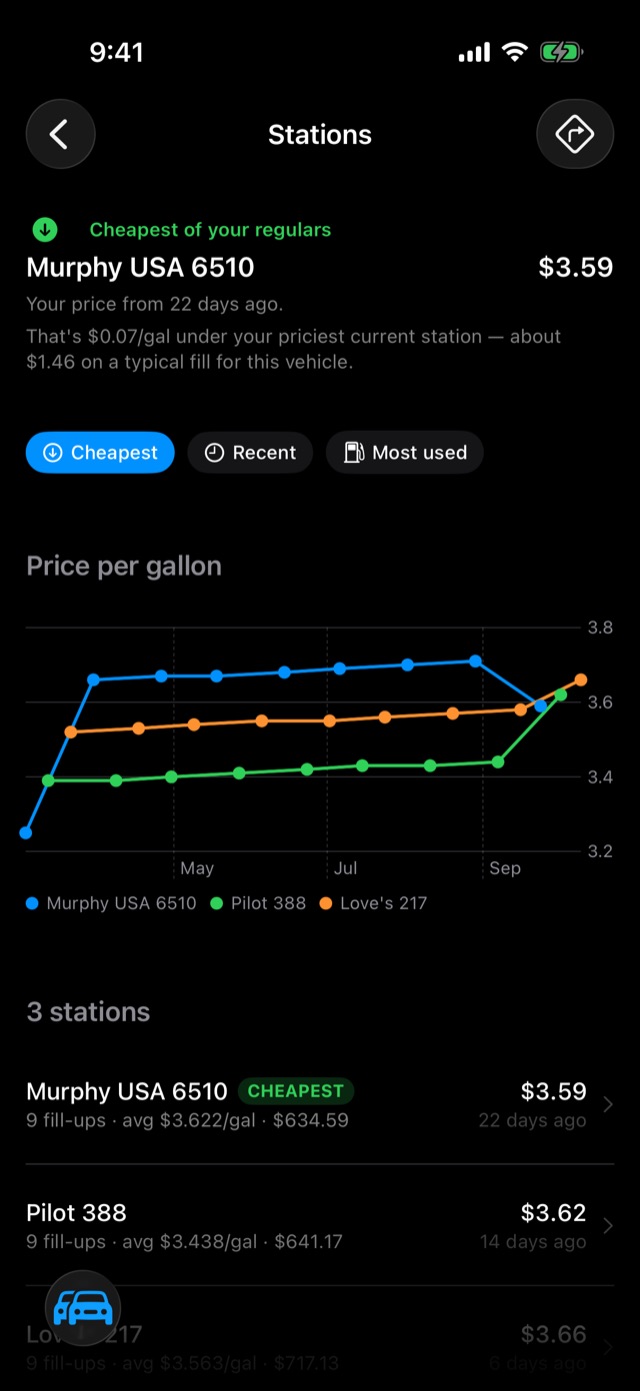
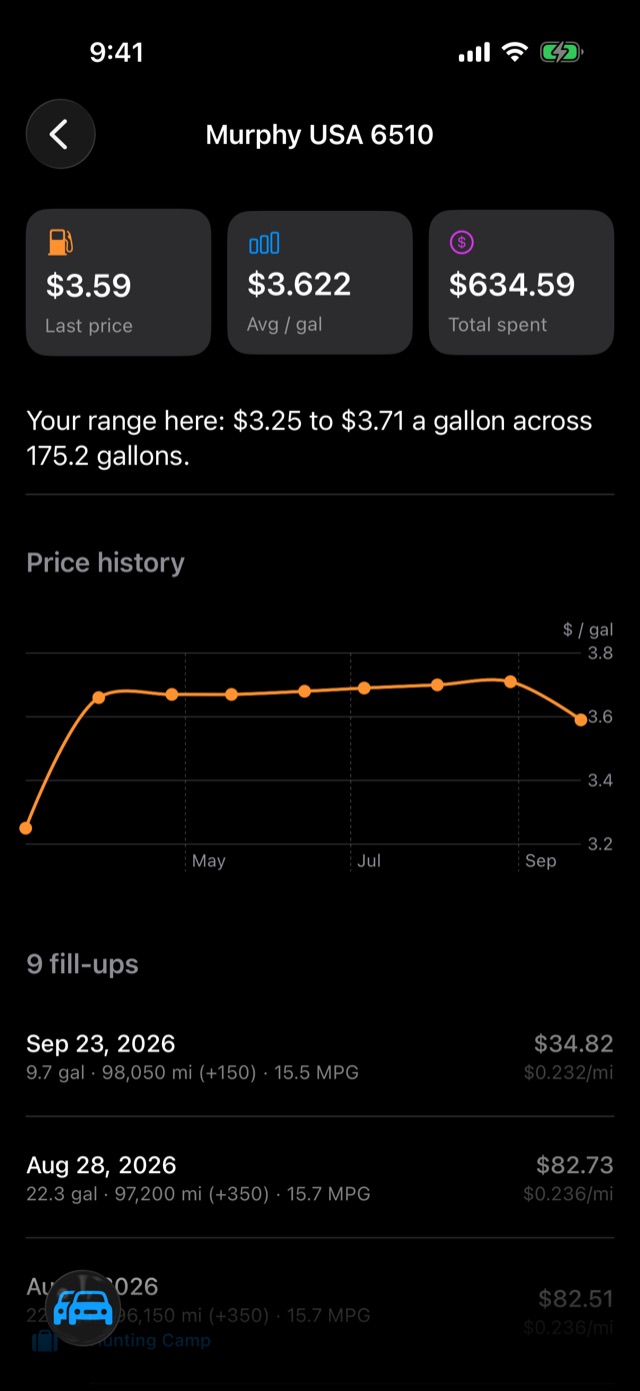
Tap Compare Stations in the fuel log, or the cheapest-station line on the Fuel Economy card. Every station you've logged is listed with its price history, sorted by cheapest, most recent or most used. Tap one to see every fill-up you've made there and how its price has moved.
One station, several spellings? A receipt scanned in poor light can turn one station into two ("Murphy USA" and "Murpny USA"). Swipe the wrong one and choose Merge, then pick the right one from the list: your most-used stations come first. Its fill-ups take that name and the two price histories become one. Rename, on the same swipe, fixes a name outright.
Worth the detour?
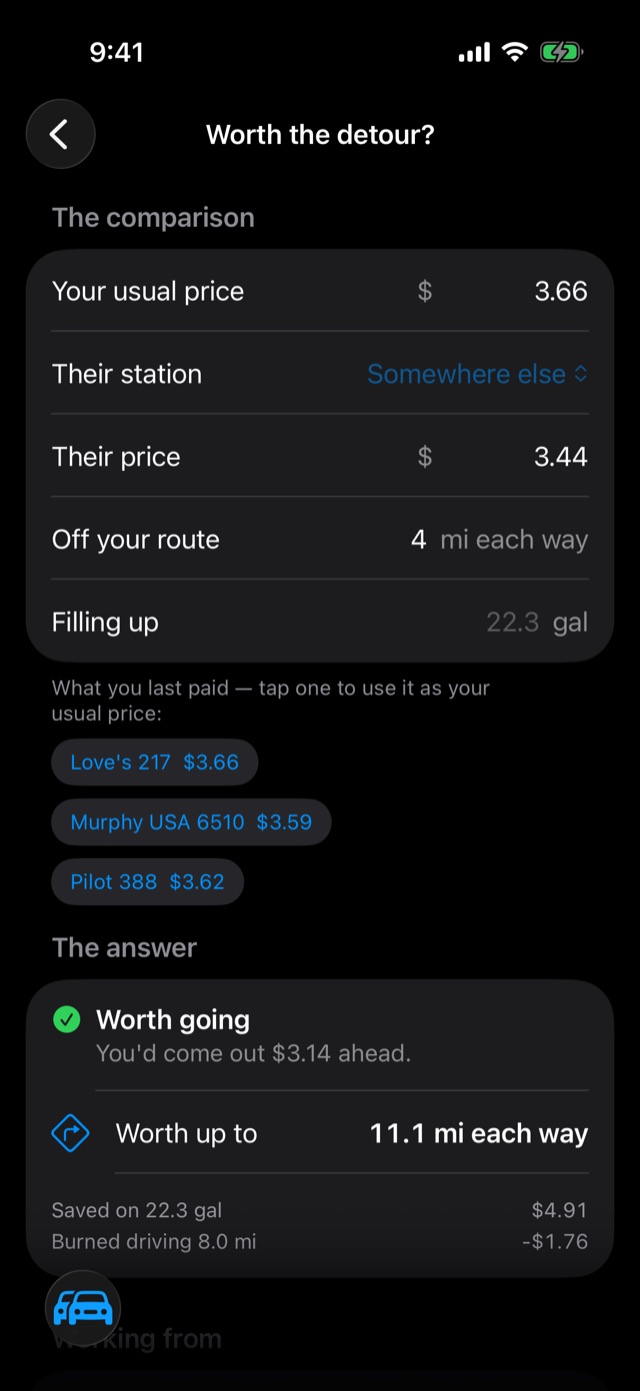
The tile on a vehicle's page reads something like "4.9 mi, worth driving for 10¢/gal." That's how far out of your way a dime off a gallon is worth going, worked out from what this vehicle really gets to the gallon and what you usually pay. It counts the drive back too.
Tap it to check a particular station: put in their price and how far off your route it is, and it tells you whether you'd come out ahead, and by how much.
Service and repairs
Log a service
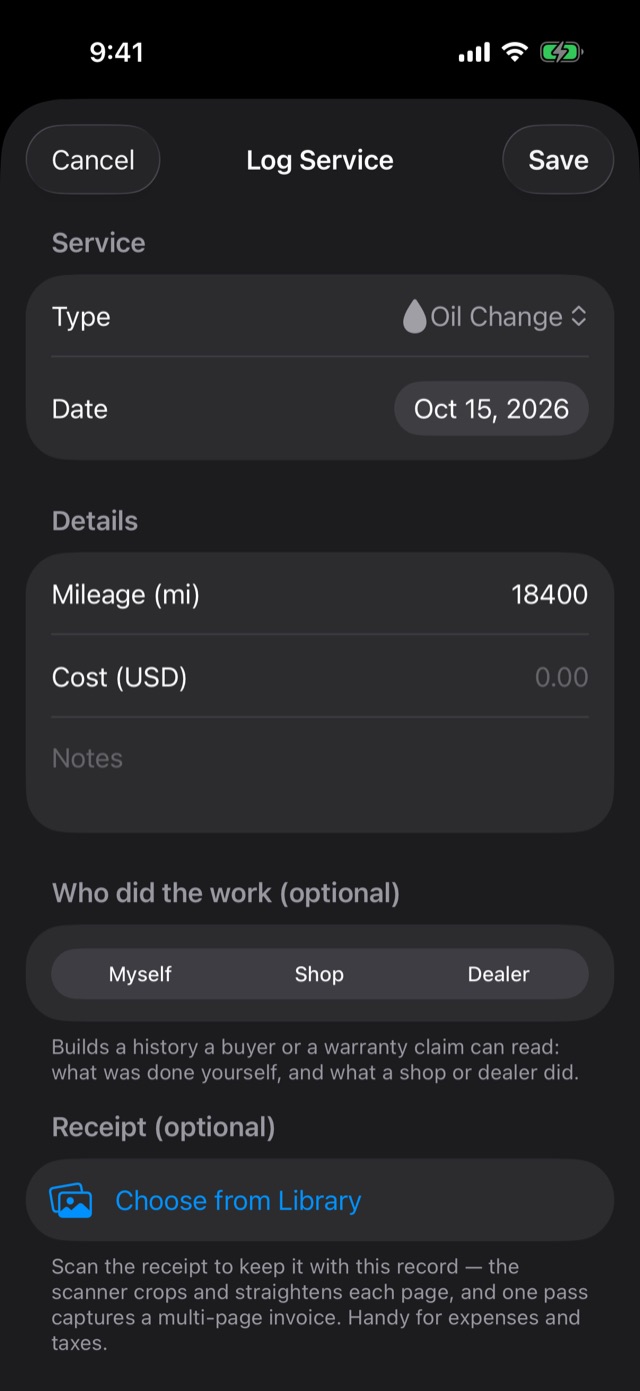
From the garage, press and hold the vehicle's card and choose Log Service. Or open the vehicle and tap ••• → Log Service, or the + on the Service History card. Then:
- Type: oil change, tire rotation, brakes, battery and so on, or your own (see below).
- Date and Mileage.
- Cost and any Notes ("Mobil 1 5W-30, 7 qt").
- Who did the work: Myself, Shop or Dealer, with the shop's name. Handy when a buyer or a warranty claim asks.
- Receipt: scan the invoice or pick a photo. Multi-page invoices go in as one record.
Logging a service also resets its reminder. Log an oil change and the next one is counted from today.
Service history
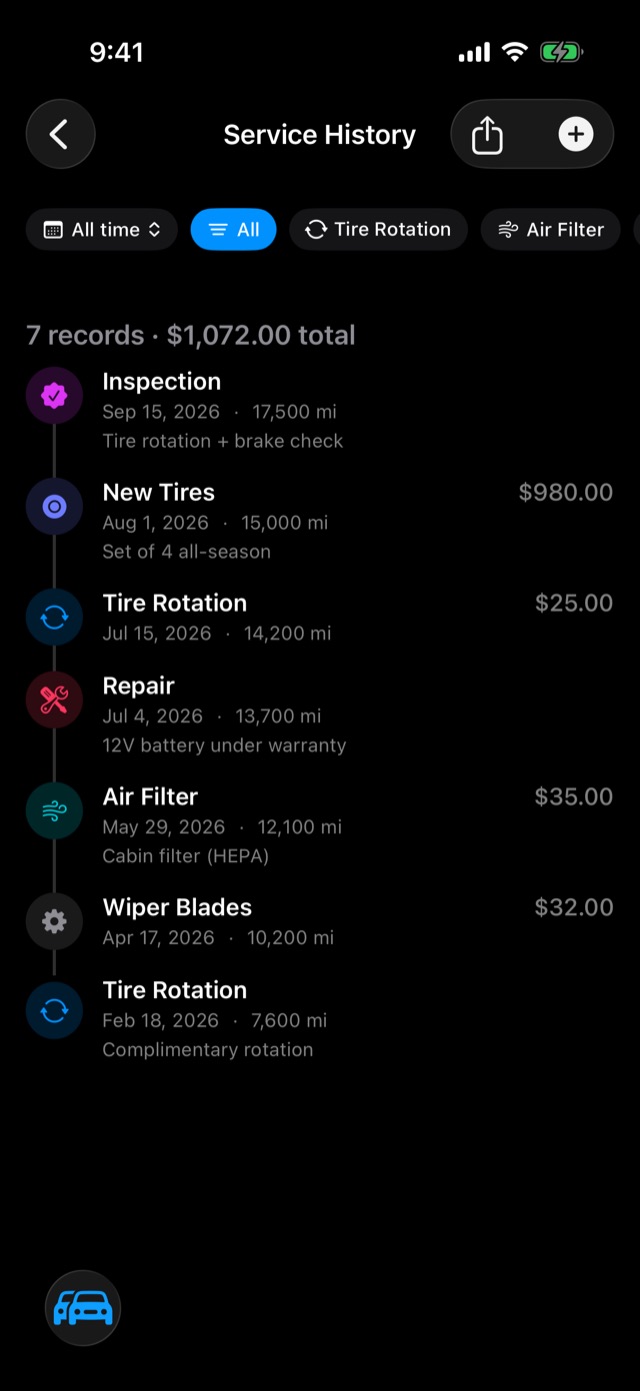
Tap the Service History tile or card for every record on the vehicle, newest first, with the count and total spent at the top. Filter by type ("just the tire rotations") or by time. It's the screen that proves the maintenance when you sell, and it exports as a PDF. See Export.
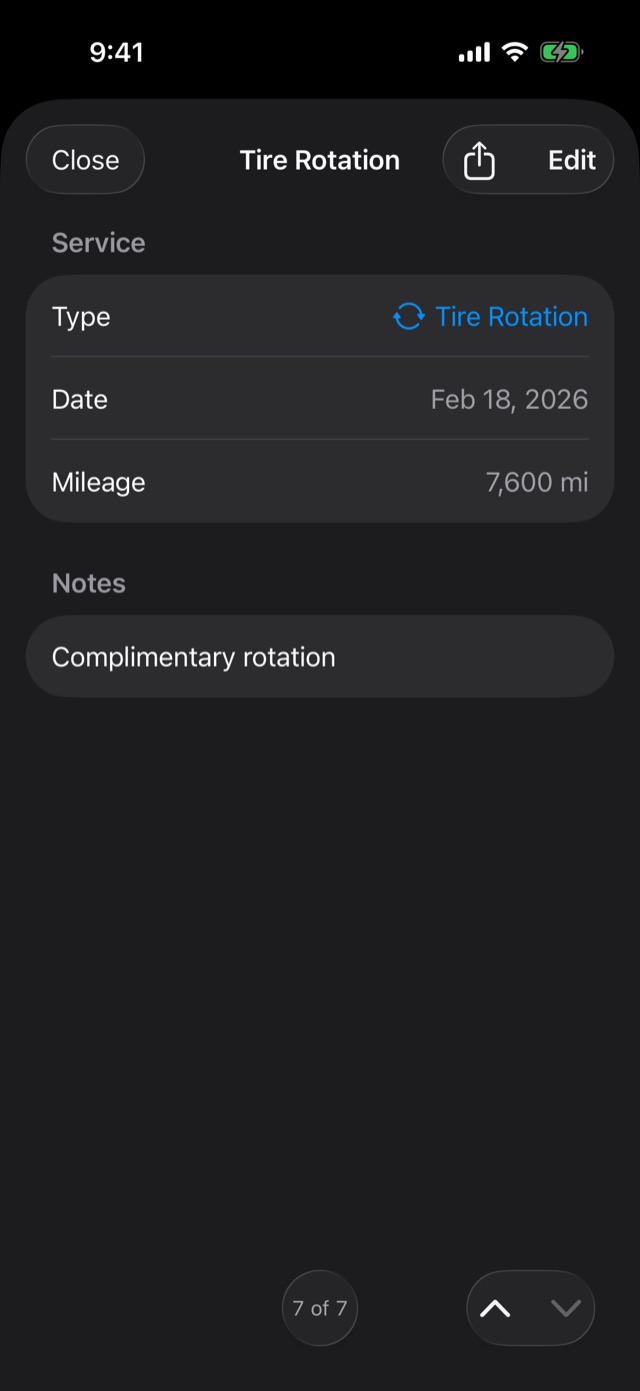
How far apart they really are. Open any record and "Since the last one" shows the miles and time since the previous record of the same kind: how far that tank of DEF went, or how long since the last oil change, with no trip meter to reset. Below it is your average across every one logged, and filtering Service History to one type puts the same average at the top. The Service Due list goes one step further and compares it with the interval you set, so you can see whether you really change the oil when the schedule says. It uses the odometer as you typed it, like the reminders. (A beta-tester idea.)
Your own service types
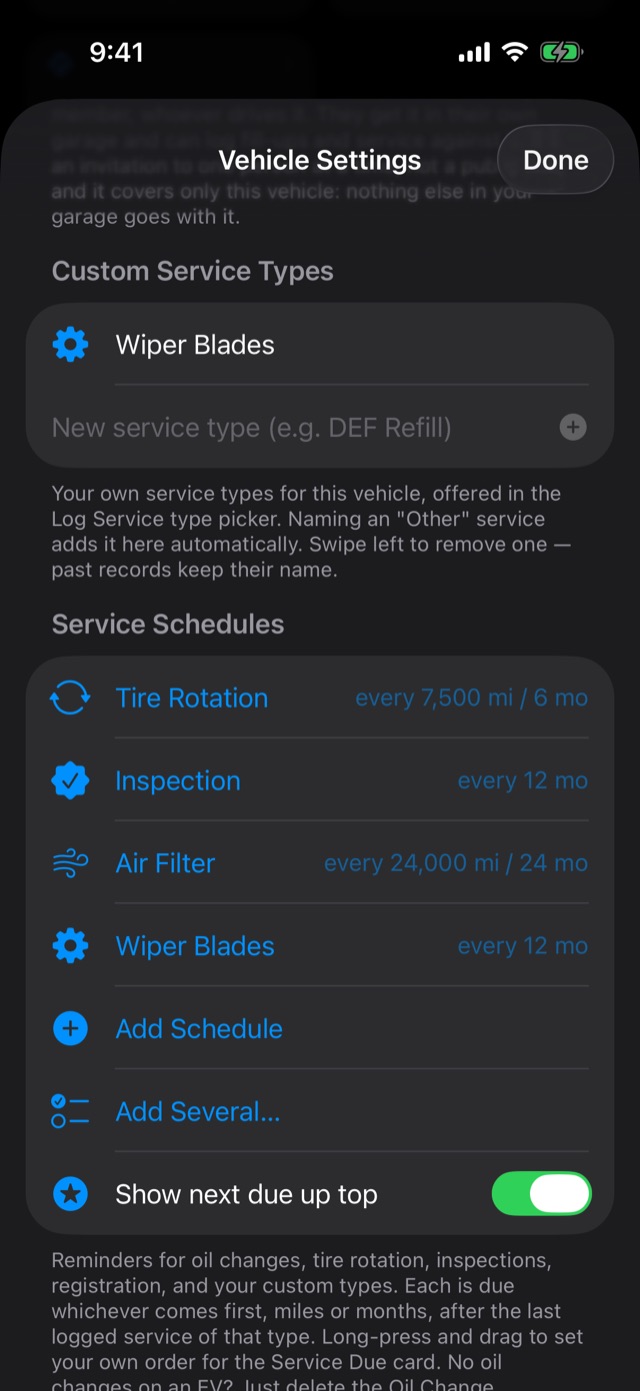
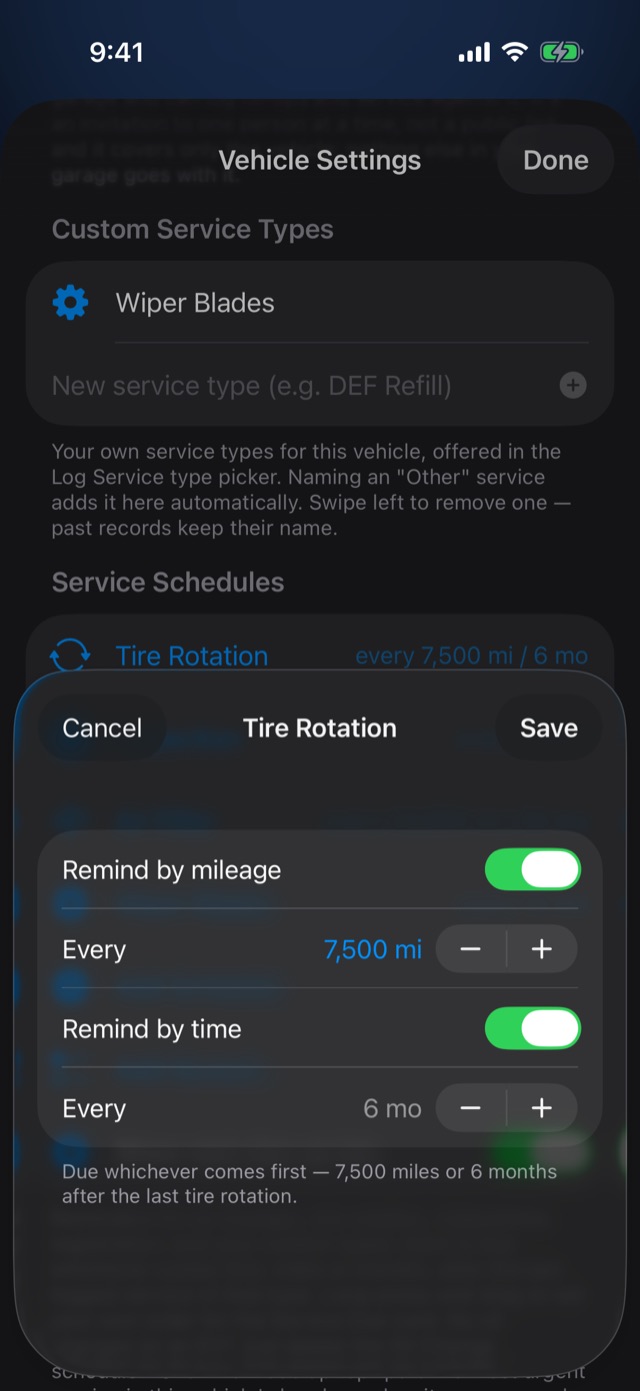
Need a type that isn't in the list, like "DEF refill" or "Cabin filter"? In Vehicle Settings → Custom Service Types, type it in. It joins the type list for that vehicle. Naming an "Other" service when you log it adds it here automatically. Removing one later never touches past records.
Service reminders
How "due" works
Each reminder is a schedule: a service type with an interval in miles, months, or both. "Oil change every 5,000 miles or 6 months." It's due whichever comes first, counted from the last time you logged that service.
Haven't logged one yet? The schedule still shows when the first one would fall, marked "none logged yet", and never shows red. A used car's real last service date can't be guessed, so log the last one you know of and everything counts from there.
The Service Due card
On each vehicle's page, every schedule with a bar showing how close it is: green, then orange as it gets near, red when it's overdue. Anything overdue always shows, even when the card is only previewing a few. Tap a row to log that service with the type already picked. The sort button switches between most-urgent-first and your own order.
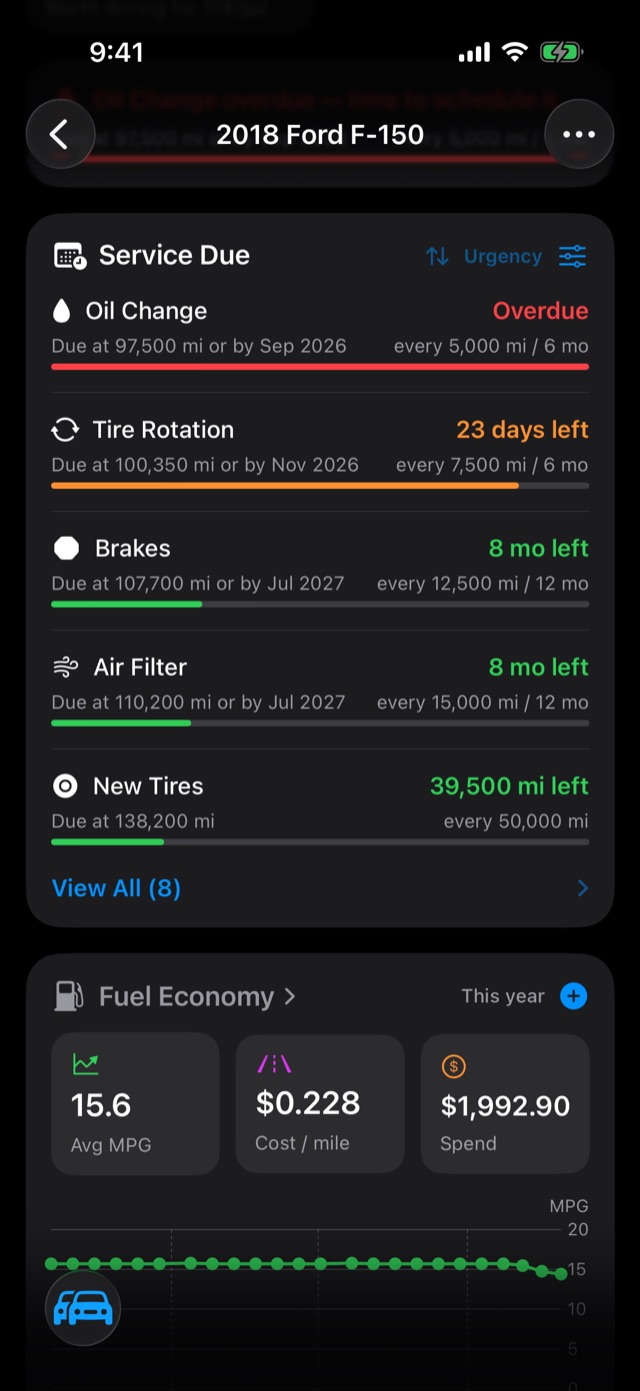
The most urgent service also shows at the top of the vehicle's page and on its garage card. Turn that off with Show next due up top in Vehicle Settings.
Set up your schedules
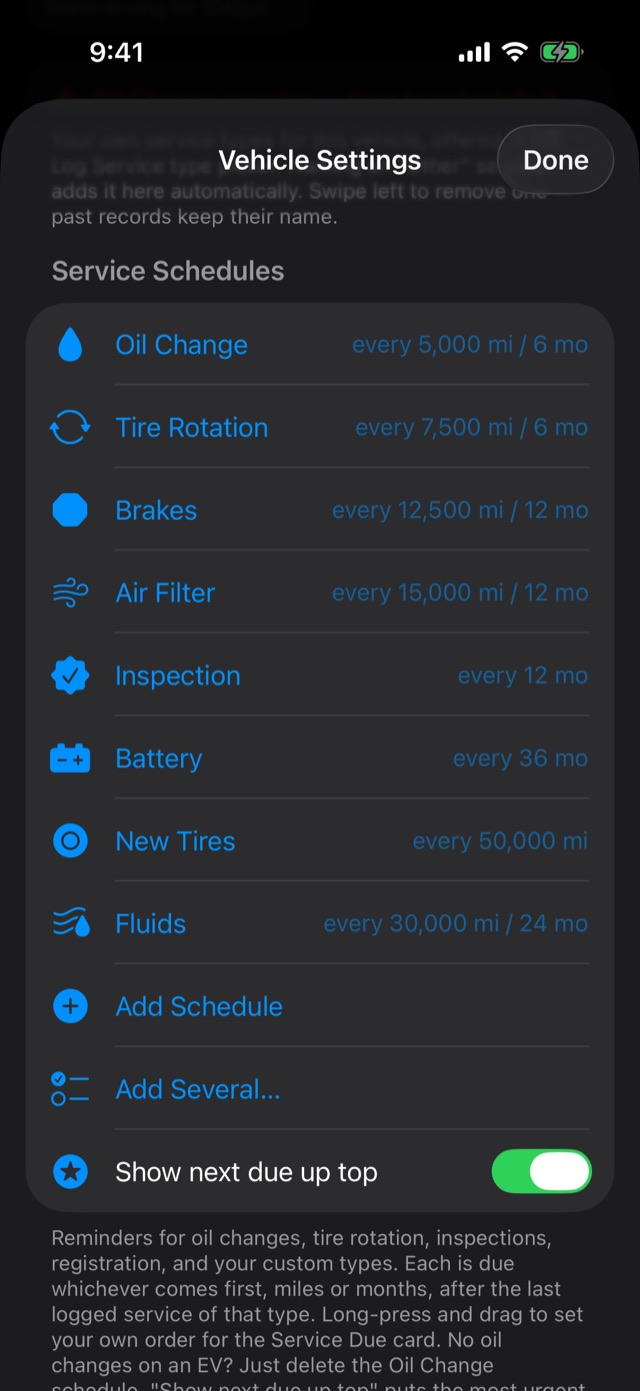
Open Vehicle Settings (or tap the slider icon on the Service Due card). Under Service Schedules:
- Add Several… suggests the usual intervals for a vehicle like yours. Tick the ones you want, adjust any interval, and add them in one go. You can also type in something else.
- Add Schedule adds one at a time.
- Tap any schedule to change its interval. Turn off the miles or the months if only one matters.
- Press and hold, then drag to set your own order. Swipe left to delete one.
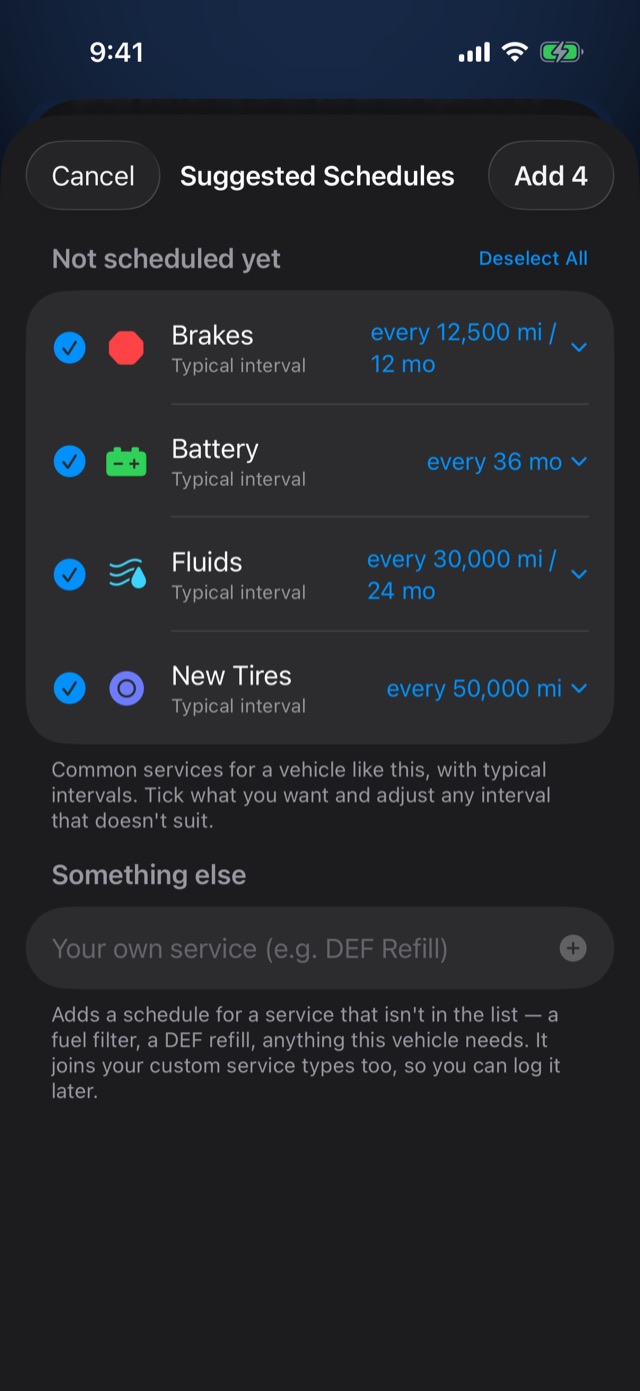
Your judgment beats the suggestion. The suggested intervals are typical for the type of vehicle, and your owner's manual knows yours better. If you change your oil more often than the factory says, set it that way.
Read the schedule from your owner's manual
Most manufacturers put the owner's manual on their website as a free PDF. Upload it to the vehicle (see Owner's manual), then in Vehicle Settings tap From Owner's Manual. Dipstick reads the maintenance table out of it, asks which engine if the manual covers several, and shows you every row to review before anything is added.
Reminders on your phone
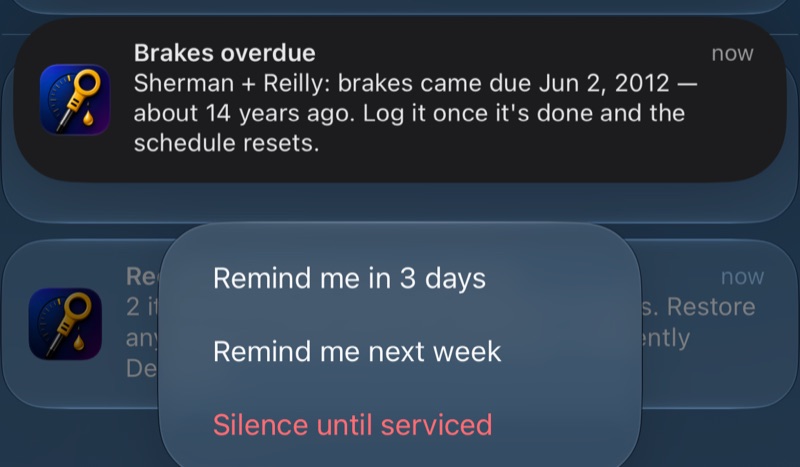
Dipstick sends a notification a week before a service is due, and again on the day. If it goes overdue, it reminds you once a week until it's logged. Tap a reminder to open that vehicle.
Press and hold a reminder for more choices: Remind me in 3 days, Remind me next week, or Silence until serviced, which quiets that one service until you log it. To turn reminders off altogether, go to Settings → Service reminders. Mileage-only schedules can't remind you on a date, since the phone doesn't know how far you've driven until you tell it.
The glovebox
Insurance and registration
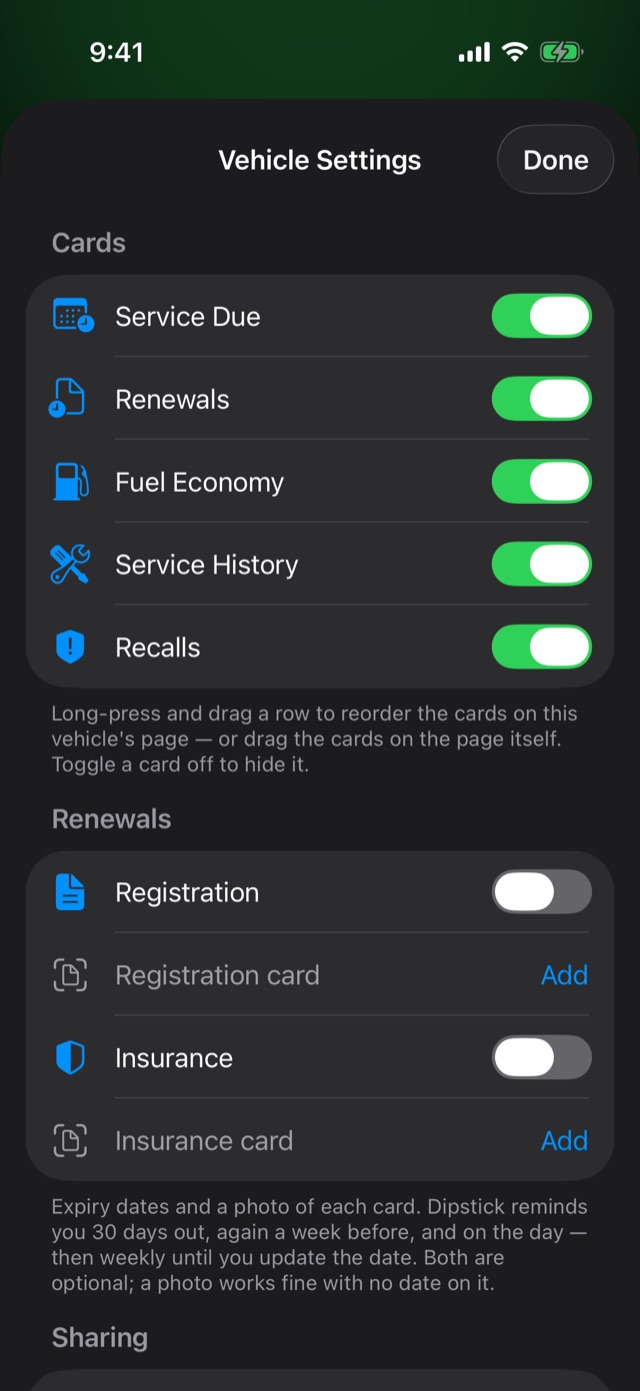
In Vehicle Settings → Renewals, switch on Registration or Insurance and set when it expires. Tap Add beside the card to keep a copy of the card itself: scan the paper one, pick a photo, or bring in the PDF your insurer emailed you.
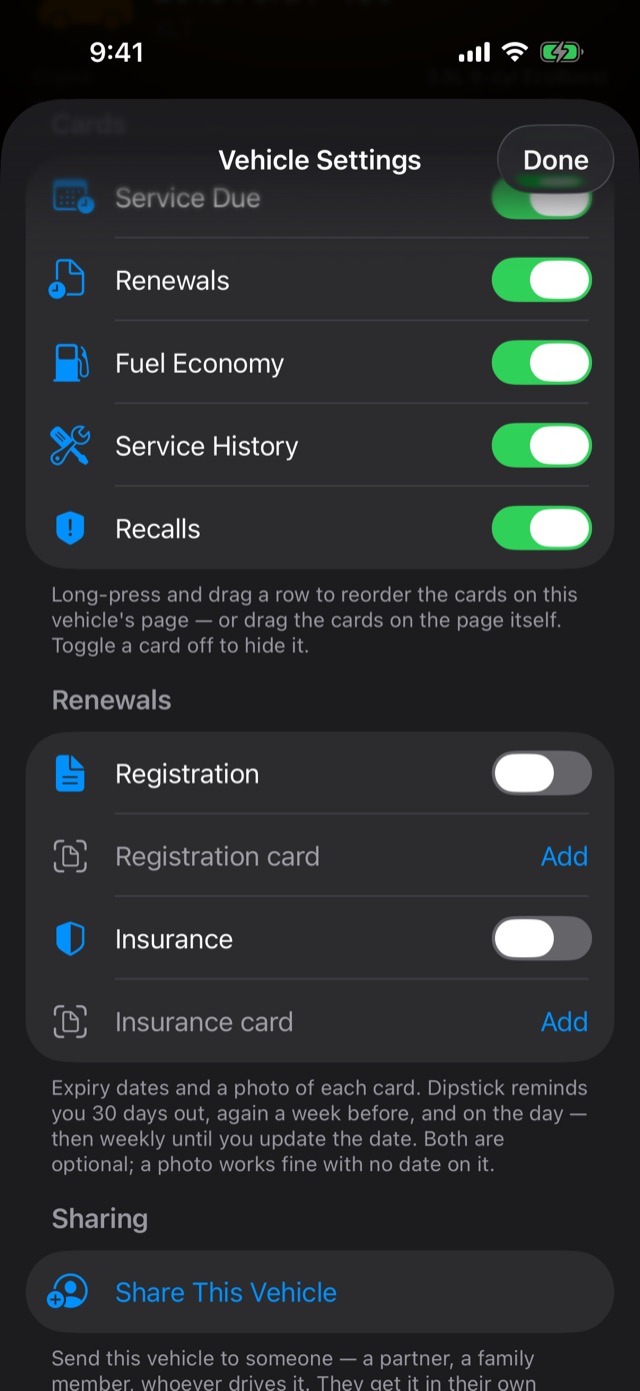
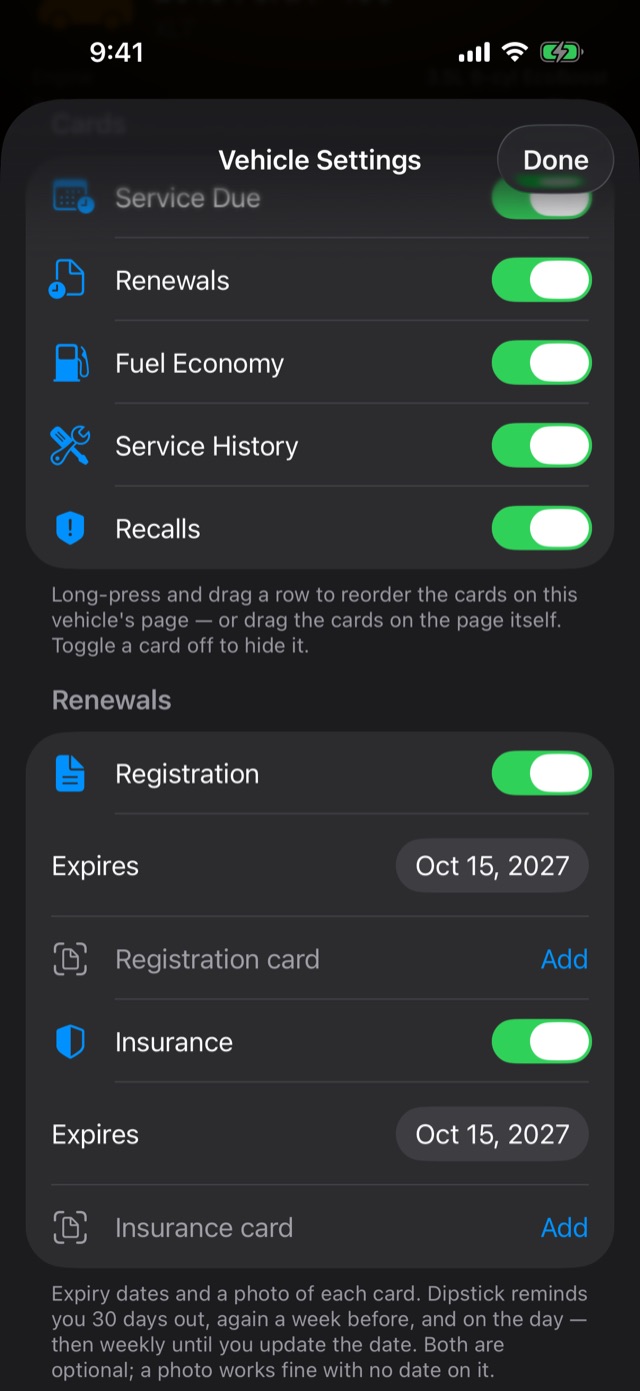
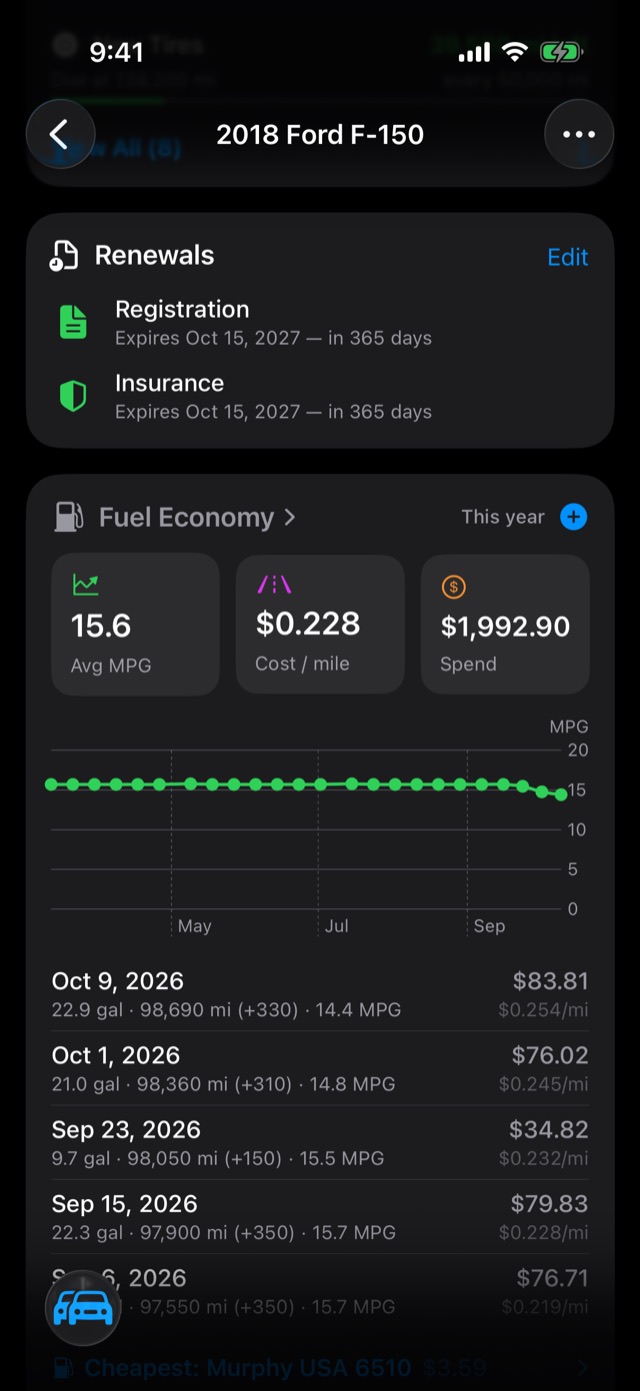
Dipstick reminds you 30 days before, again a week before, and on the day, then weekly until you put in the new date. The photo works fine on its own with no date, so the insurance card is on your phone when you're pulled over or at the DMV — press and hold the vehicle's card in the garage and Show Insurance Card is right there, full screen and bright. On a shared vehicle, both of you get the card and the reminders.
Owner's manual
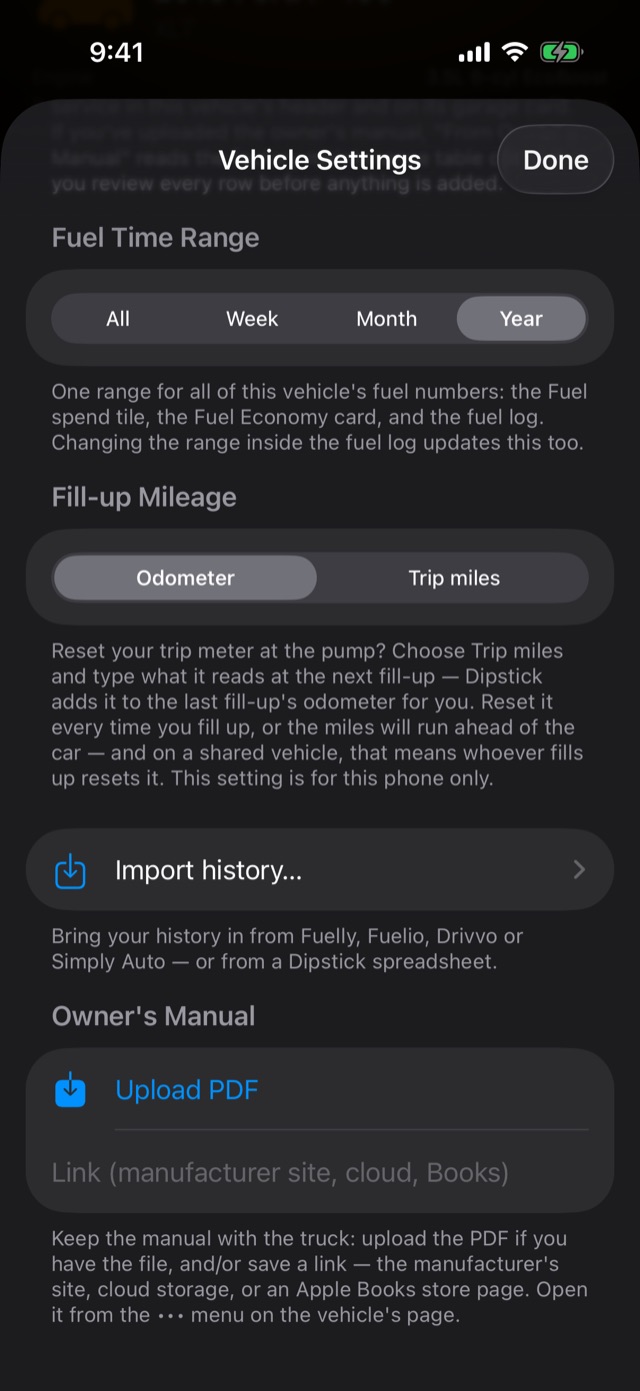
Keep the manual with the vehicle. In Vehicle Settings → Owner's Manual, Upload PDF if you have the file, or save a link to the manufacturer's site. Open it any time from the vehicle's ••• menu, and search inside it for things like "tire pressure" or "oil capacity".
Safety recalls
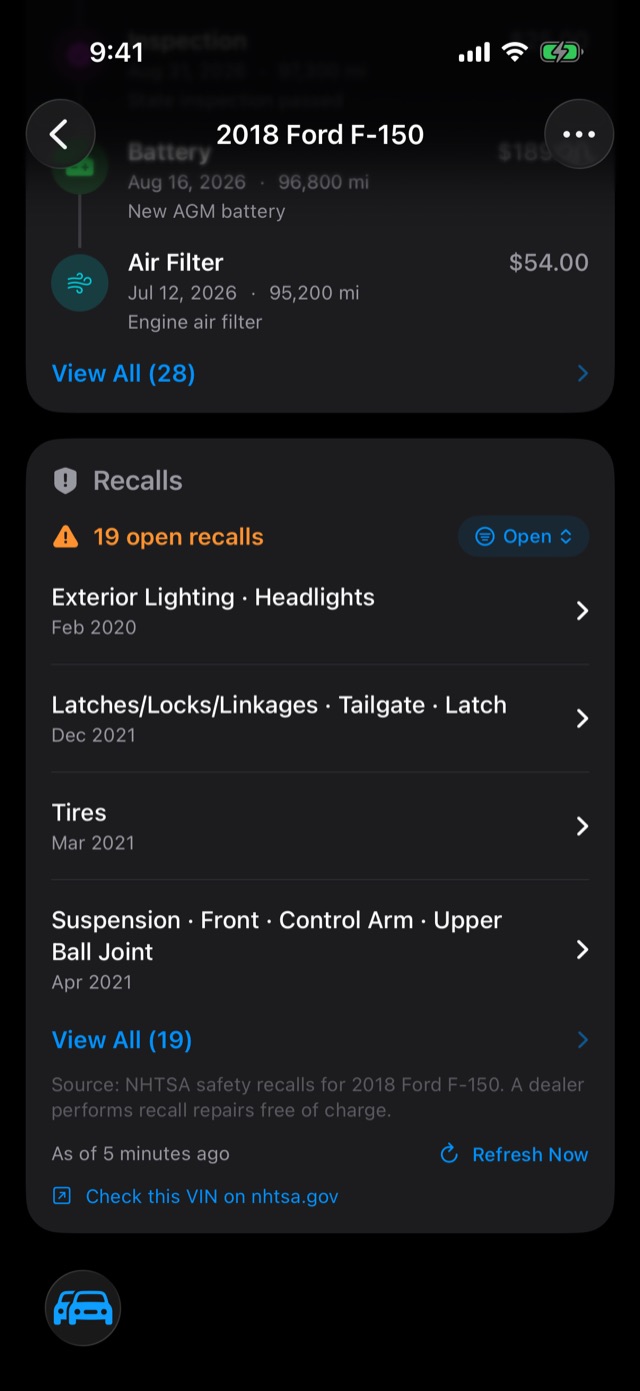
The Recalls card checks your VIN against the U.S. government's public recall database (NHTSA). It shows open recalls first. Tap one for what's wrong and what the fix is. Recall repairs are done free by a dealer. Once yours is fixed, mark it done, and the card's filter switches between open, critical and all.
It checks once a week by itself, or tap Refresh Now. Only the VIN is sent, and only to NHTSA.
Costs and insights
Cost of ownership
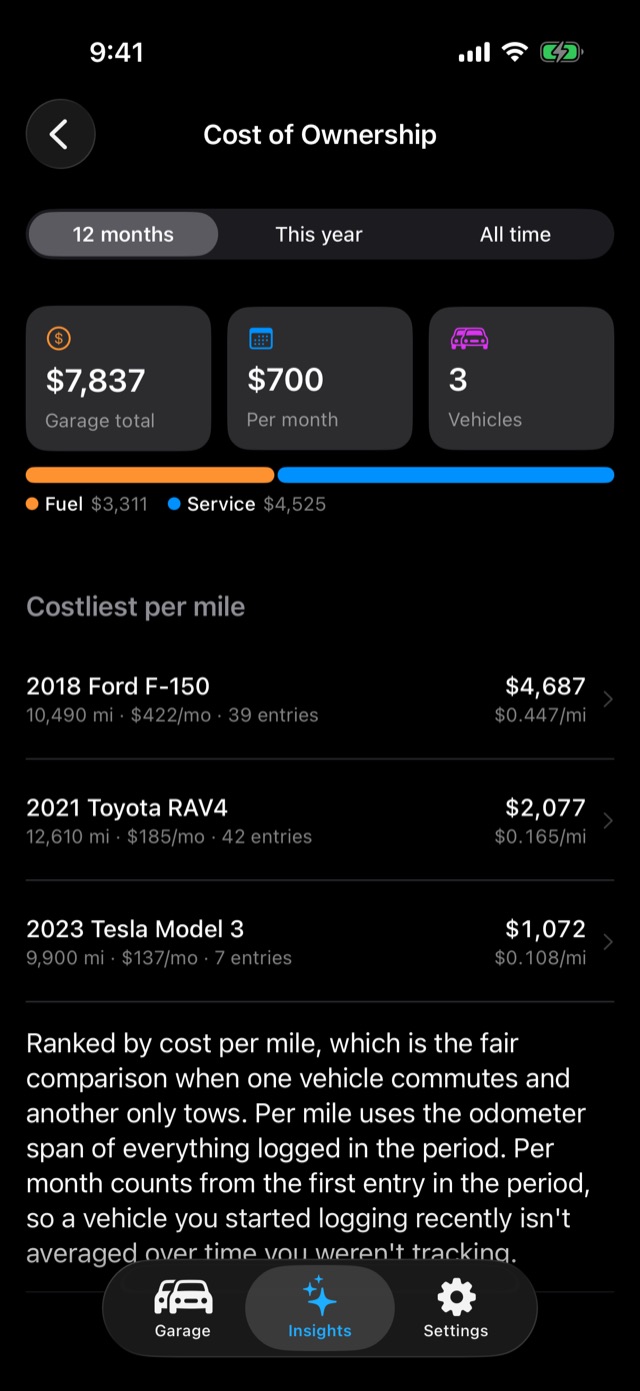
On the Insights tab, tap Cost of Ownership. Fuel and service added together for every vehicle: the garage total, what it averages per month, and the split between fuel and service. Below that, your vehicles are ranked by cost per mile, the fair way to compare a commuter with a truck that mostly sits. Switch between the last 12 months, this year and all time at the top.
AI insights
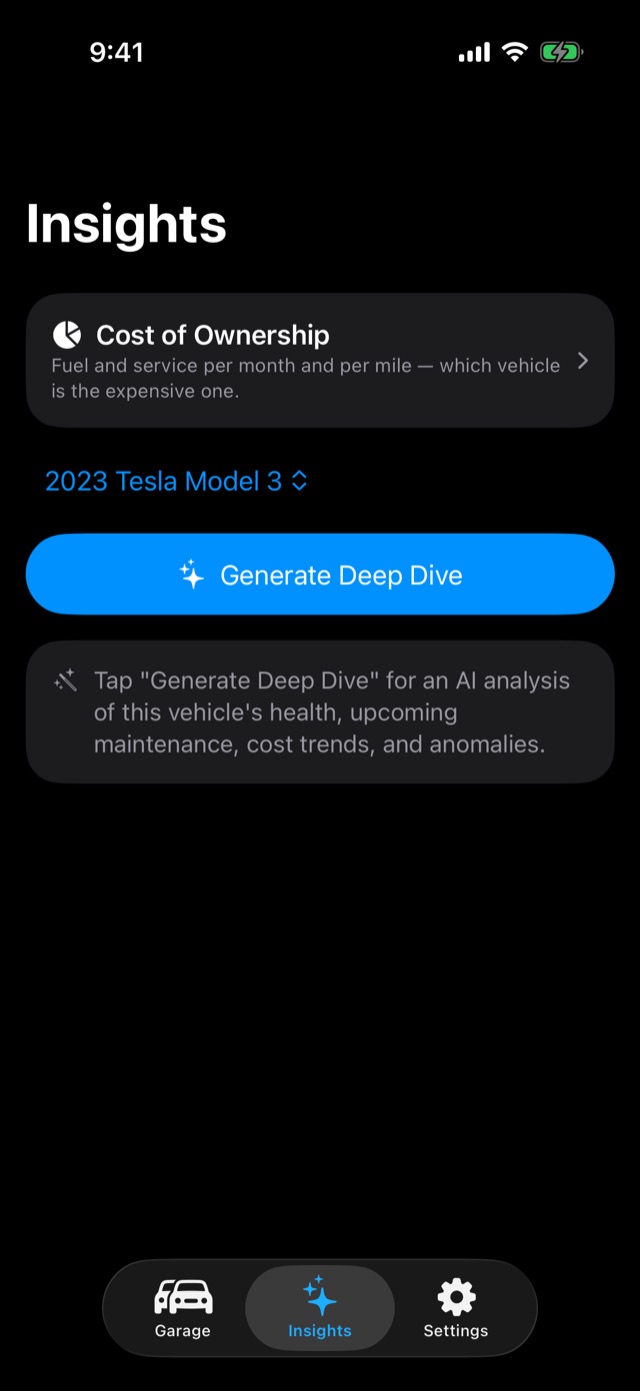
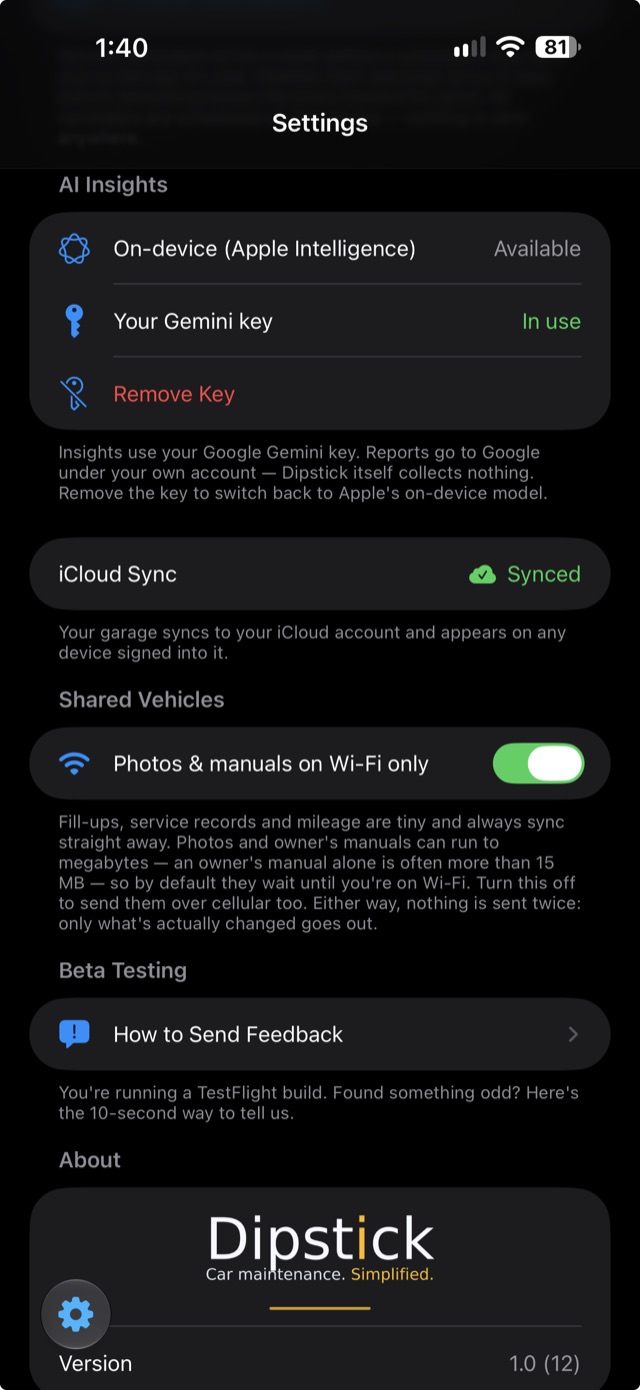
Pick a vehicle on the Insights tab and tap Generate Deep Dive for a written rundown of its health, what's coming up, cost trends and anything odd in the numbers. On newer iPhones it runs on Apple Intelligence, right on the phone. If your phone can't, you can paste in your own Google Gemini key under Settings. It's optional, and most people won't need it.
Sharing a vehicle
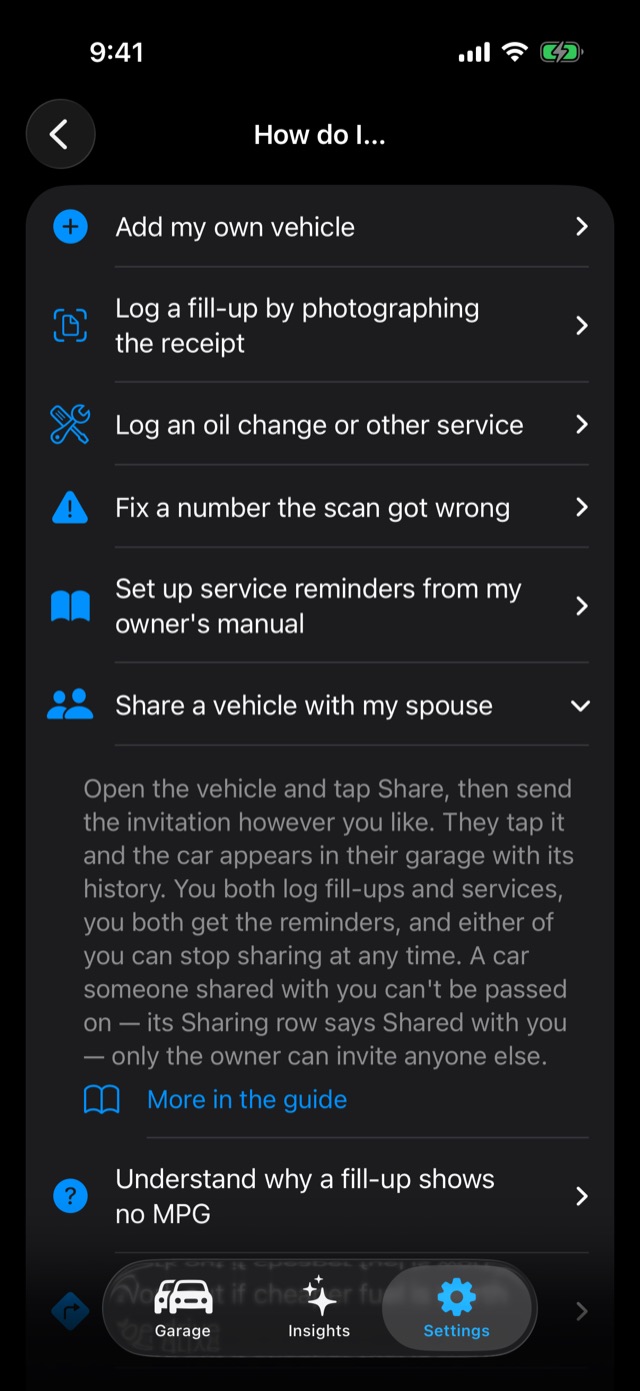
Share a vehicle with your spouse, a family member, whoever drives it, and it shows up in their garage with its whole history. You both log fill-ups and services, you both get the reminders, and the insurance card is there when either of you needs it.
- Open the vehicle, tap ••• → Share This Vehicle (it's also in Vehicle Settings, under Sharing).
- Send the invitation however you like: Messages, email, AirDrop.
- They tap it on their iPhone, with Dipstick installed, and the vehicle appears in their garage.
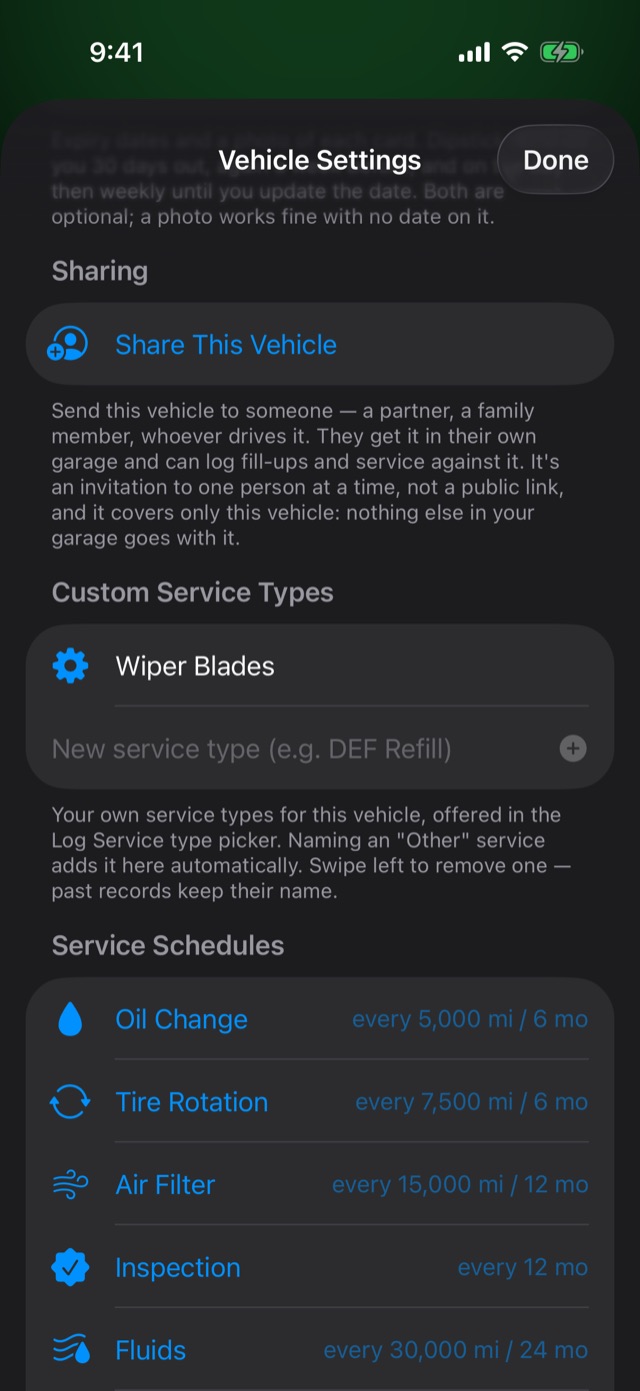
What sharing is, and isn't. It's one vehicle, with one person at a time, by invitation only. It's not a public link, and nothing else in your garage goes with it. It runs through iCloud, so you both need to be signed into iCloud on your phones.
- When things arrive: changes go across when either of you opens the app or leaves it, and usually within seconds. It's not instant like a text message.
- Photos and manuals wait for Wi-Fi. Records and mileage are tiny and go straight away. Photos and owner's manuals can be many megabytes, so they wait for Wi-Fi unless you turn off Photos & manuals on Wi-Fi only in Settings.
- Stop sharing any time from the same Share This Vehicle screen. Either of you can.
- A vehicle shared with you can't be passed on. Its Sharing row in Vehicle Settings says "Shared with you"; only the owner can invite anyone else.
- Trip miles, station distances and similar personal settings stay on each person's own phone.
Moving data in and out
Import from another app
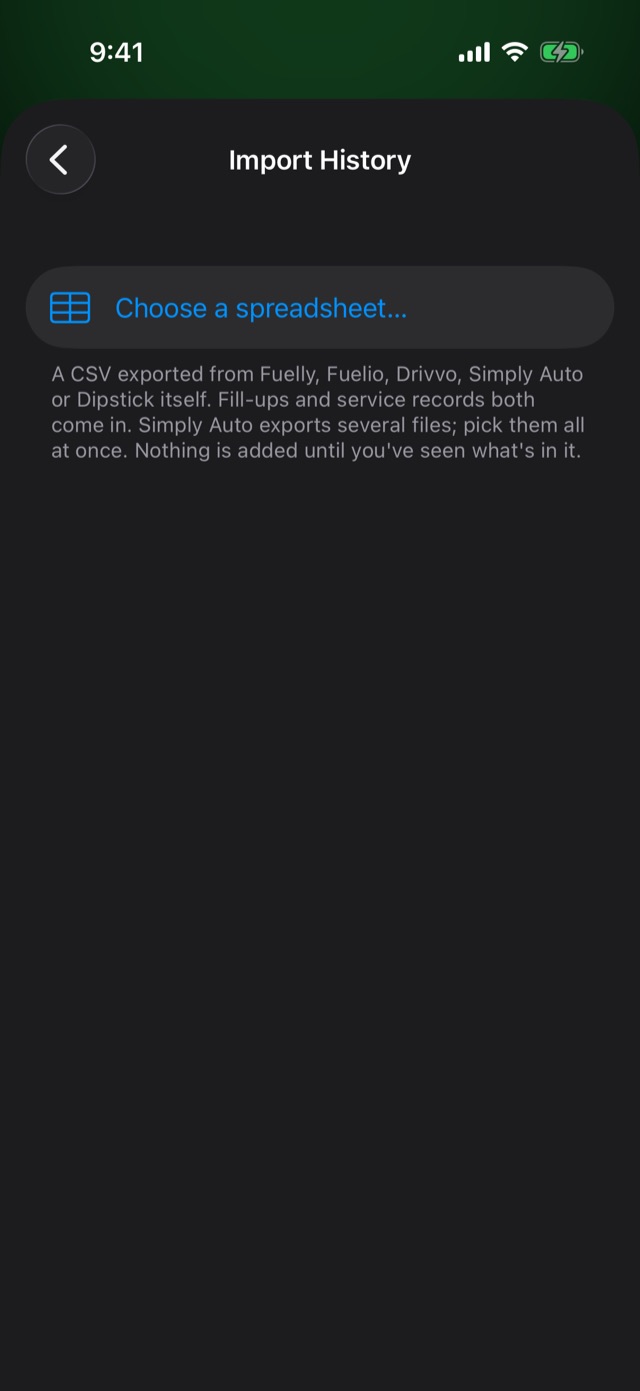
Dipstick reads the spreadsheet (CSV) exports from Fuelly, Fuelio, Drivvo and Simply Auto, plus its own. First export from the old app (its settings usually have an "Export" or "Backup to CSV" option) and get the file onto your phone, in Files or iCloud Drive. Then:
- For a vehicle that isn't in Dipstick yet: in the garage, tap + → Bring a car in from another app…. The vehicle's details, fill-ups and service records come in together. If the file has no VIN, you can scan it.
- For a vehicle you already have: open it, then Vehicle Settings → Import history… → Choose a spreadsheet.
Either way you see what's in the file before anything is added. Anything already in your log is left alone, so importing the same file twice won't double it. A row whose odometer runs backwards against the rows dated before it is set aside too — the preview says how many, under "Odometer runs backwards" — because it would give the fill-up after it an impossible MPG. Simply Auto exports several files; pick them all at once.
A Fuelly history logged by trip meter has no odometer column at all — Fuelly leaves it out when you never typed one. Dipstick reads the distance of each tank instead and adds the readings up, oldest to newest. The preview asks one question: what the odometer showed at the most recent fill-up in the file. Type it and the whole history lines up with your car; leave it blank and it still comes in, counting from zero. MPG is the same either way. Export again later, with more fill-ups on the end, and the new file lines itself up on the fill-ups your log already holds — same day, same gallons — so only the new ones are added. Fuelly's export also has no make or year column, so the make and model are split out of its one "model" cell and the year is yours to add — or scan the VIN.
Export your records
Your records are yours, and you don't have to ask anyone to get them out. In the fuel log or the service history, tap the share button at the top right:
- PDF: a clean printout, for a buyer, a shop or your files. It exports whatever you've filtered to: "just the oil changes" makes an oil change history.
- Spreadsheet (CSV): opens in Excel, Numbers or Google Sheets.
- Spreadsheet + receipts: the spreadsheet zipped together with every receipt photo.
Moving to a new phone
Sign into the same iCloud account on the new phone, install Dipstick, and your garage comes across by itself. If you'd like a copy you hold yourself as well, export both lists as spreadsheets with receipts before you switch.
Making it yours
Choose and arrange a vehicle's cards
In Vehicle Settings → Cards, switch off the cards you don't use (an EV doesn't need Fuel Economy) and press and drag to reorder them. You can also drag the cards around on the vehicle's page itself. Each vehicle keeps its own layout.
Settings
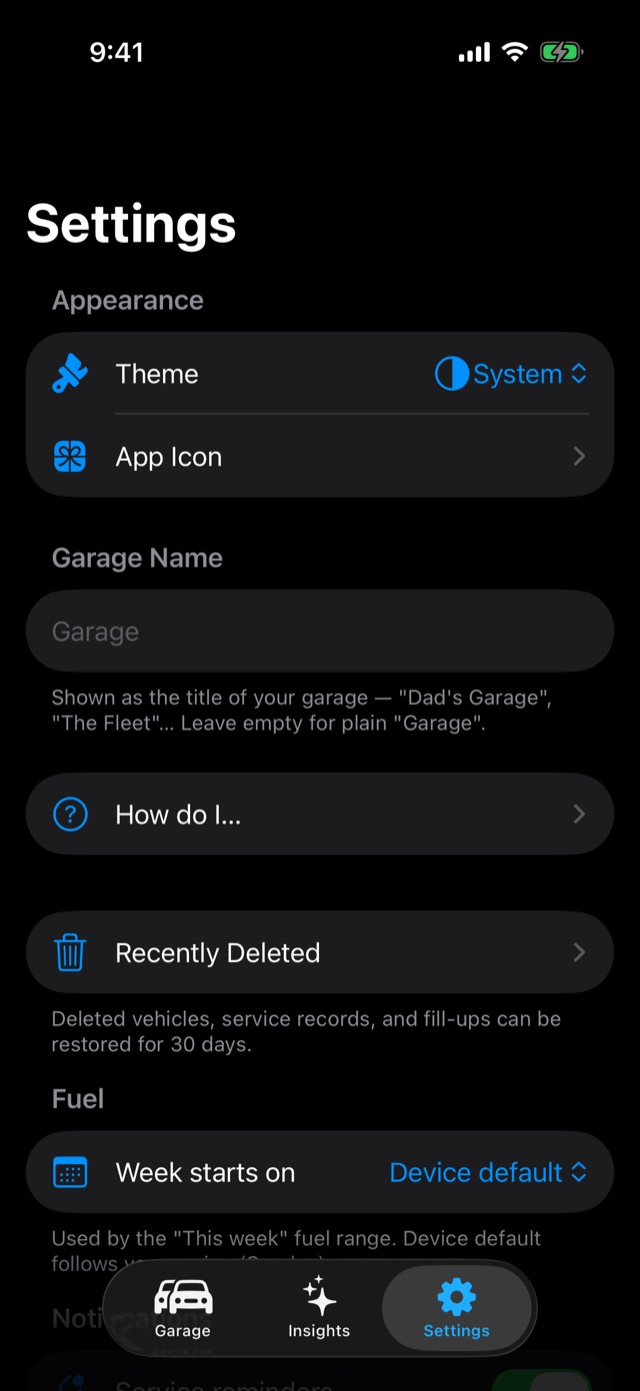
- Theme: light, dark, or follow the phone.
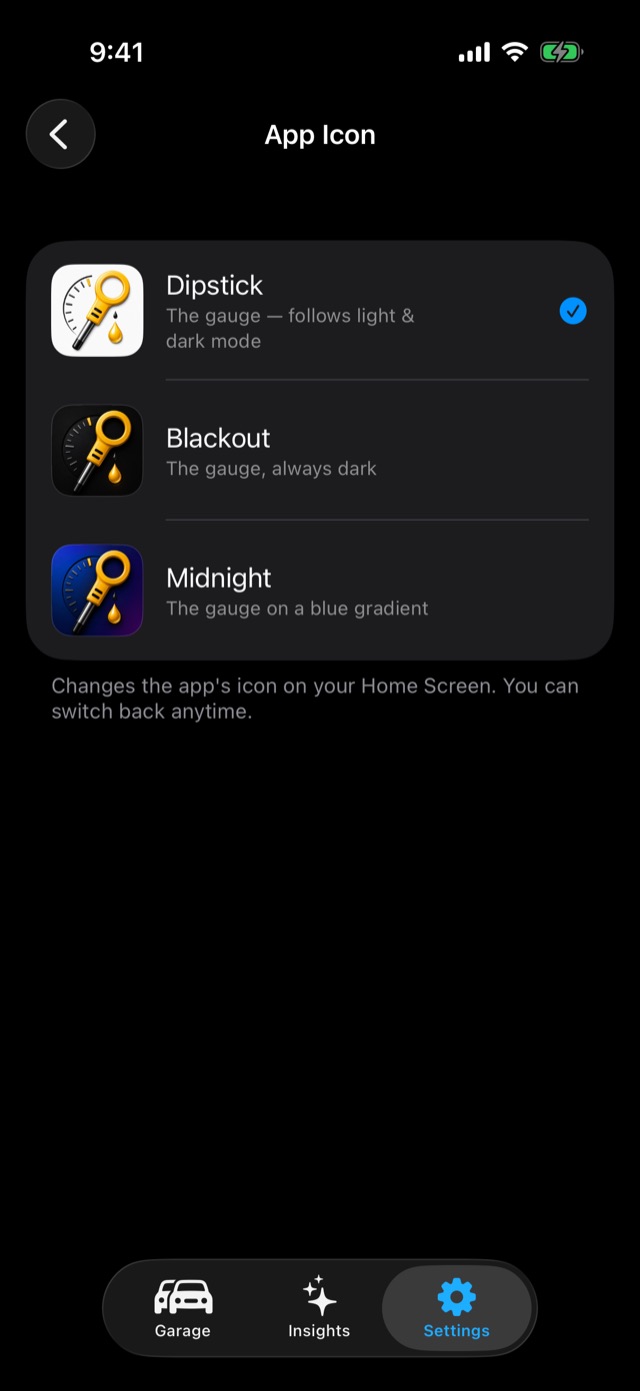
- App Icon: Dipstick (follows light and dark mode), Blackout, or Midnight.
- Garage Name: whatever you call it.
- Week starts on: for the "this week" fuel range.
- Fuel Time Range (in Vehicle Settings): one range for all of a vehicle's fuel numbers.
Safety nets and privacy
Recently Deleted
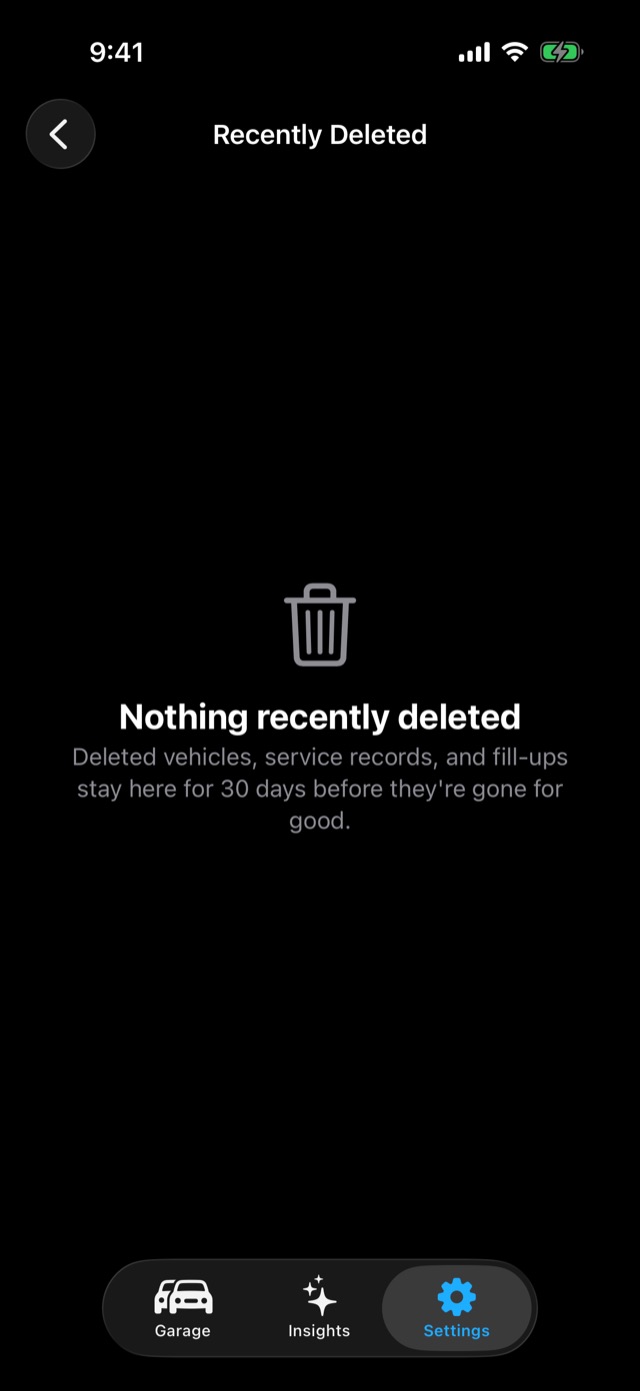
Nothing is gone the moment you delete it. Swipe a fill-up or a service record left to delete it, or delete a whole vehicle, and it goes to Settings → Recently Deleted for 30 days. Restore anything from there, or clear it yourself with Delete Now. The ⋯ at the top right has Restore All and Delete All Now for clearing a whole batch; both ask first.
Dipstick warns you 5 days before anything is removed for good. And if you weren't using the app when that warning went out, nothing is removed until you've been back for a week, with a count on the Recently Deleted row so you can't miss it.
iCloud sync
Settings → iCloud Sync shows whether your garage is being backed up to your iCloud. If it says iCloud is off, sign into iCloud in the iPhone's Settings app. Until then your records are only on this phone.
Still not syncing? Check the iPhone's own switch for Dipstick: open the Settings app, tap your name, then iCloud, then See All under Saved to iCloud. Dipstick should be switched on. It also shows how much room your garage takes up.

Where your data lives
On your iPhone, and in your own iCloud account. That's the whole list. There's no Dipstick account and no Dipstick server, so there's nowhere else it could be, and nothing is collected. The only times anything leaves the phone are when you ask: the VIN goes to the government's free vehicle and recall databases when you decode it or check recalls, and the optional AI insights send your vehicle's records to Google only if you've put in your own Gemini key. The full details are in the privacy policy.
Help and feedback
"How do I…" inside the app
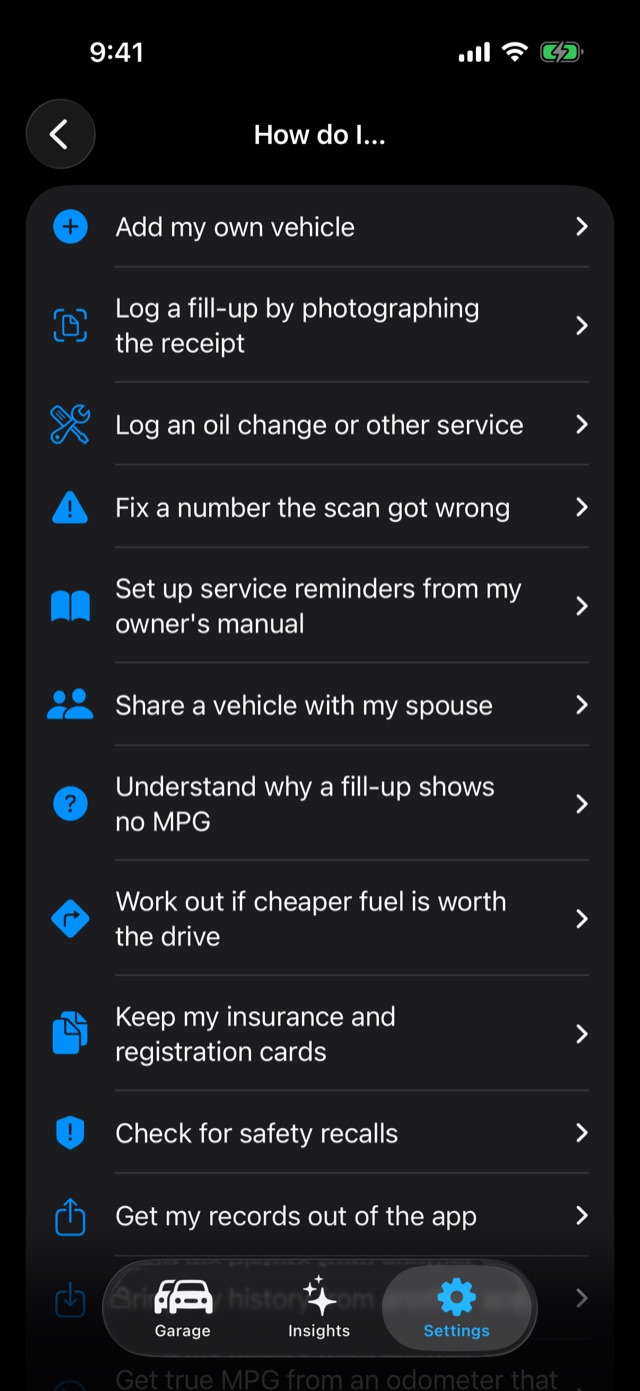
Settings → How do I… has short answers to the common questions, with a search box. Every answer ends with More in the guide, which opens the matching section of this page, and Read the full guide at the bottom opens the top of it. Watch the intro again replays the welcome screens.
Send feedback (beta testers)
The quickest way to tell me something is from inside the app, through TestFlight. It attaches which version you're on and what phone, which saves a round of questions:
- On the screen you want to talk about, take a screenshot (side button and volume up together).
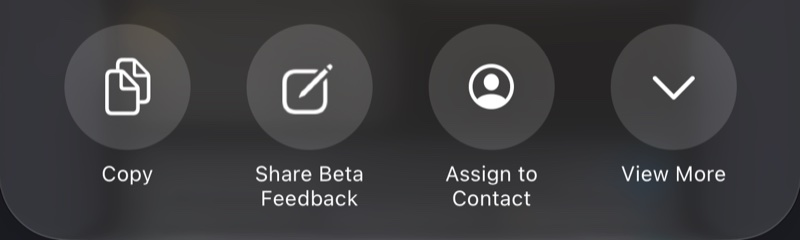
- Tap the little preview that appears in the corner, then the share button, and choose Share Beta Feedback from the row of round buttons under the apps.
- Type what you were doing and what you expected, and tap Submit.
Every piece of feedback gets read. The trip-miles feature in section 3 started as one tester's screenshot.
Anything else
Email chris@dipstickcarcare.com. Tell me what vehicle, what you tapped and what happened. A screenshot helps more than anything.